Lecture 12: Multiple Views

Brian J. Smith

2026-03-05

Multiple Views

The beginning of this lecture is based on Chapter 12 of Visualization Analysis & Design.


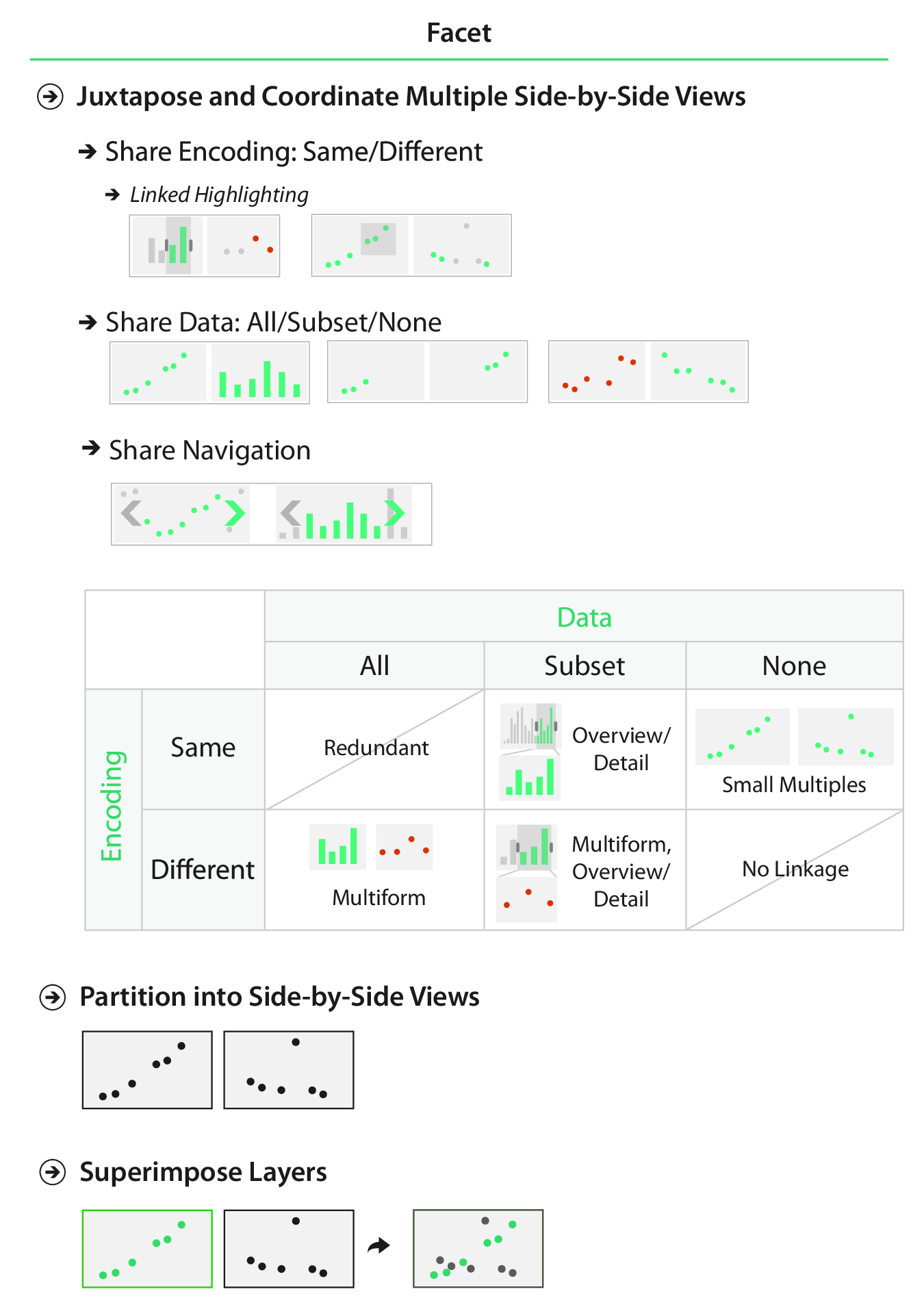
“Facet into Multiple Views”


For this lecture, I’m going to start with some principles from the VAD Text, then transition over to creating multi-panel figures in R.
Visualization Analysis & Design Cover

Facet into Multiple Views

Fig. 12.1

Fig. 12.1

Facet into Multiple Views

Decisions to Make

  • Juxtapose or superimpose?
  • Share encoding or use different encoding?
    • Use linked highlighting?
  • Share data or show different data?
    • All
    • Some
    • None
  • Share navigation?

Juxtapose or Superimpose?

Juxtapose or Superimpose?
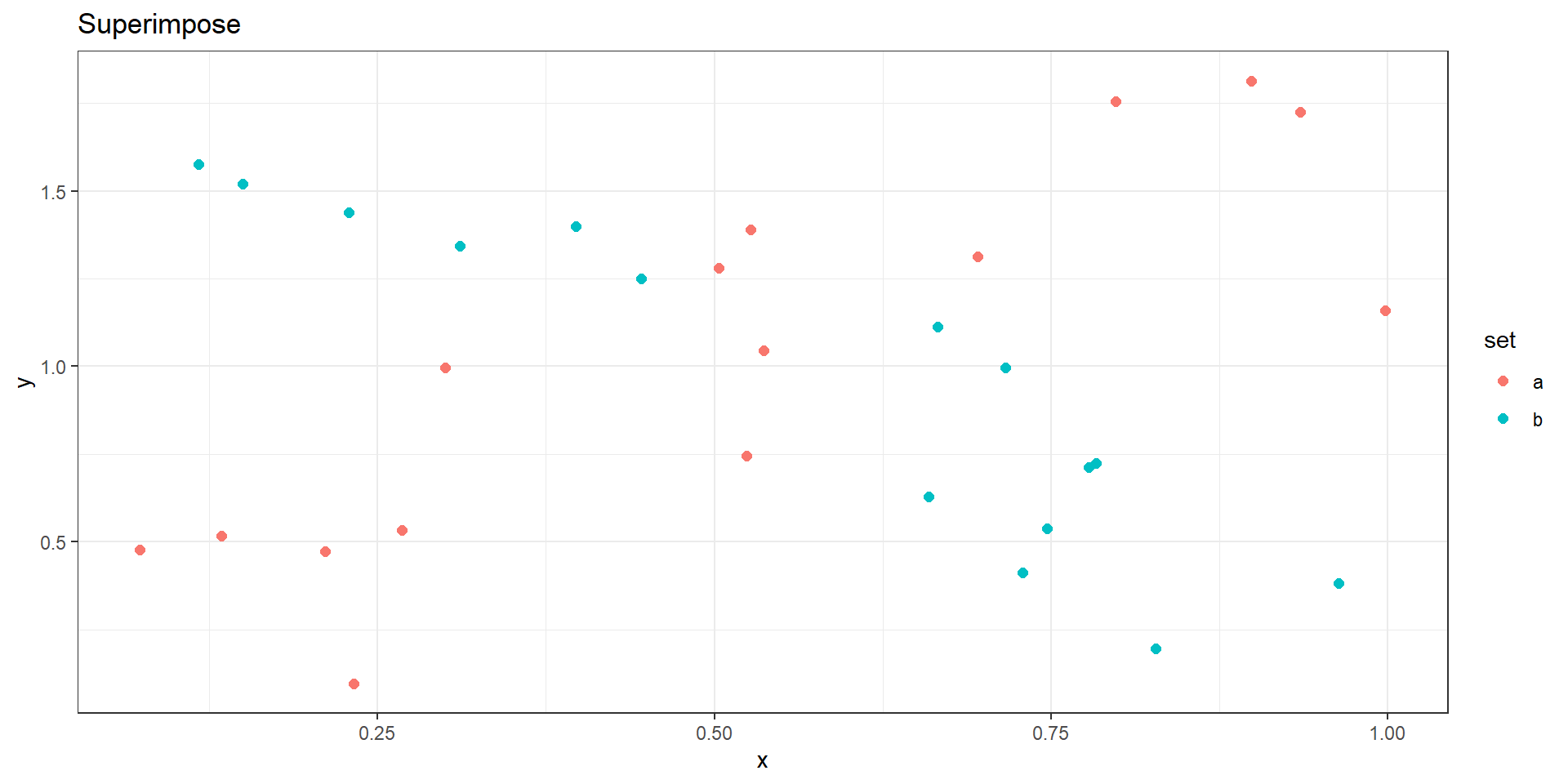
Juxtapose or Superimpose?

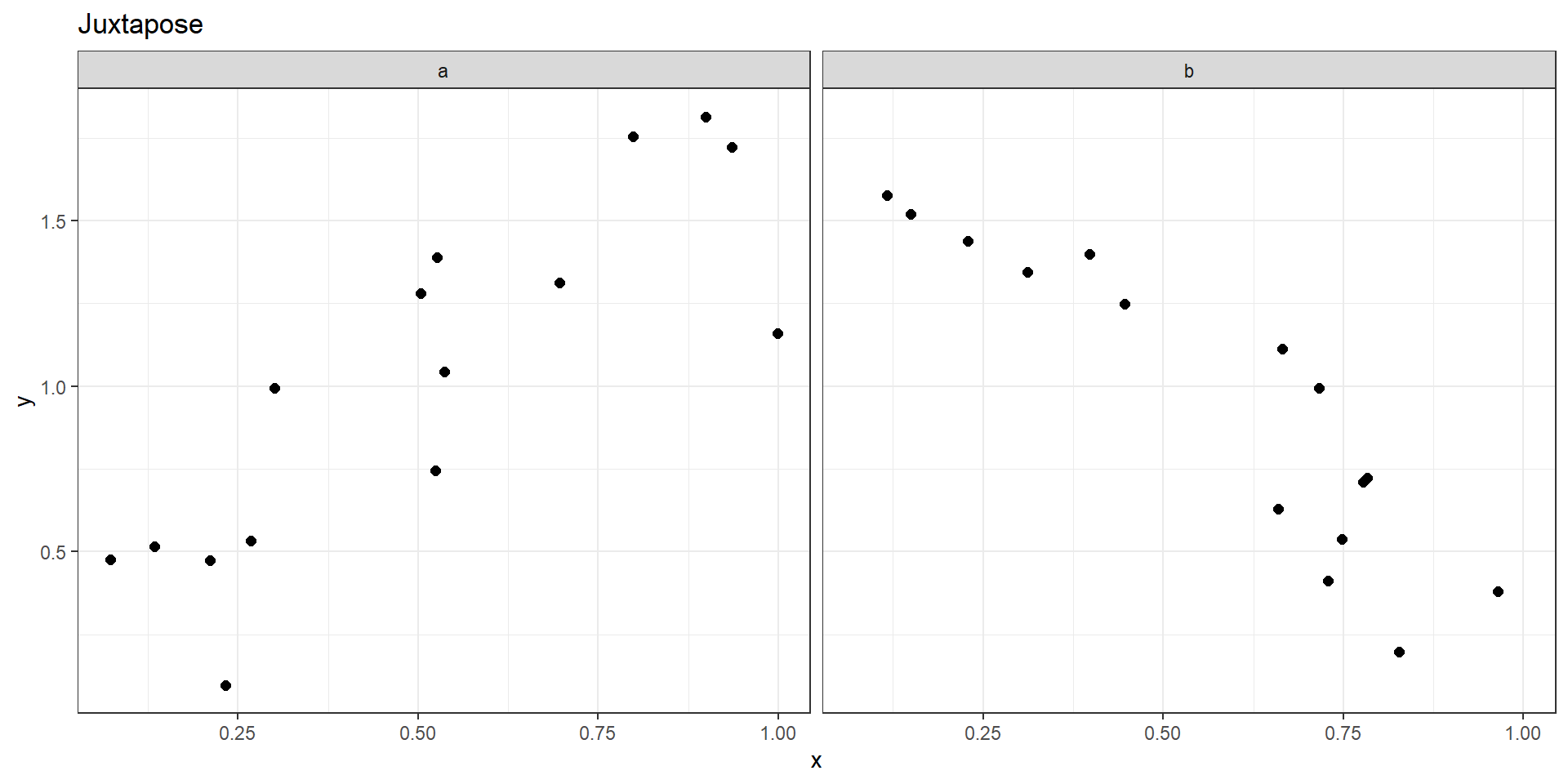
Juxtapose

  • Easy to compare (“Eyes beat Memory”).
  • Can use a different encoding for each one.
    • Can support multiple tasks.
  • Each facet gets a fraction of the space.
    • Two facets get only half the display area each.

Superimpose

  • Easy to compare (“Eyes beat Memory”).
  • Constrains choices for visual encoding.
    • The two facets must be visually distinguishable layers.
    • Usually limited to 2 or 3 layers.
  • Does not require more display area.

Share Encoding?

Share Encoding?

Share Encoding?
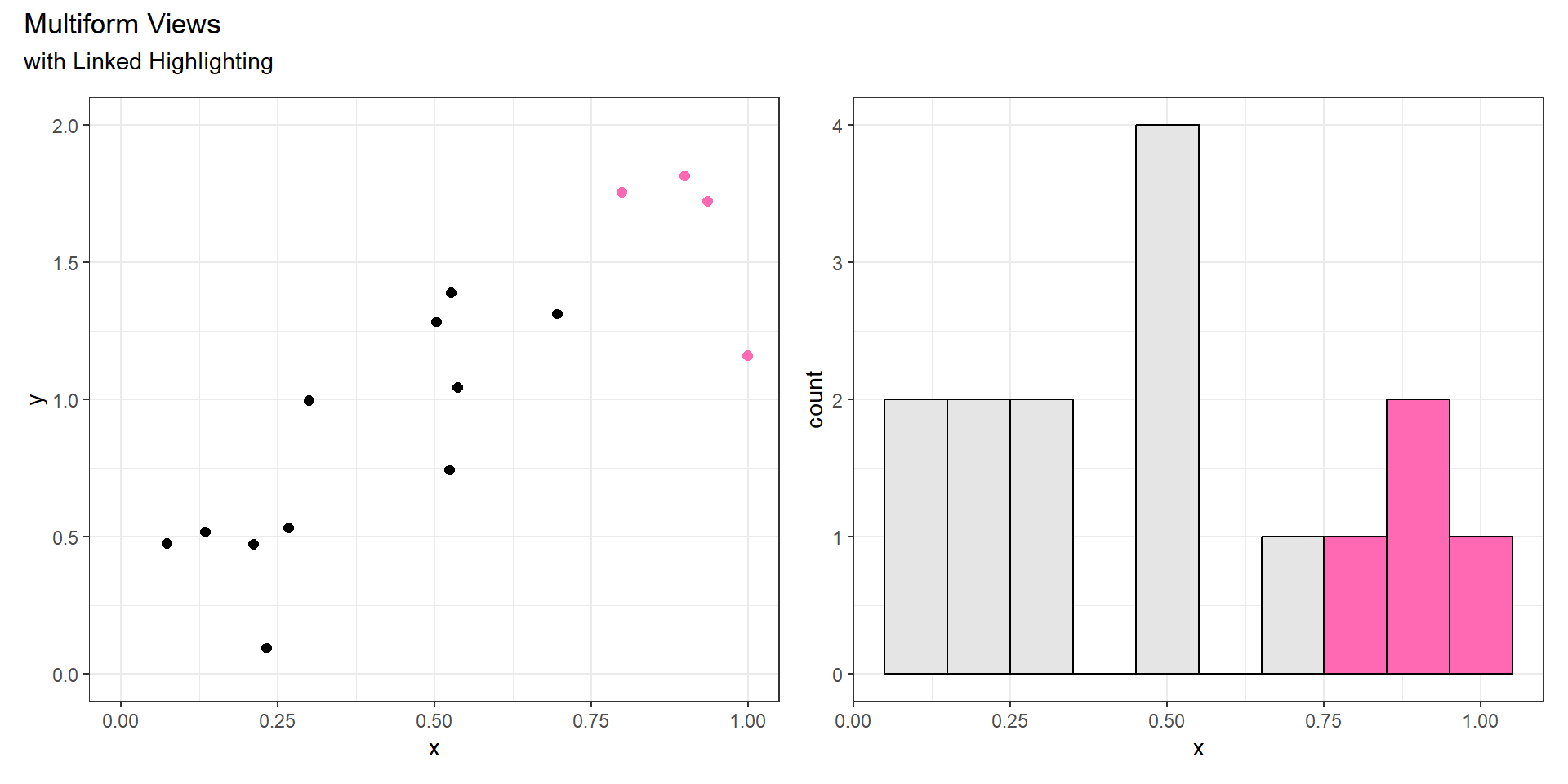
Share Encoding?

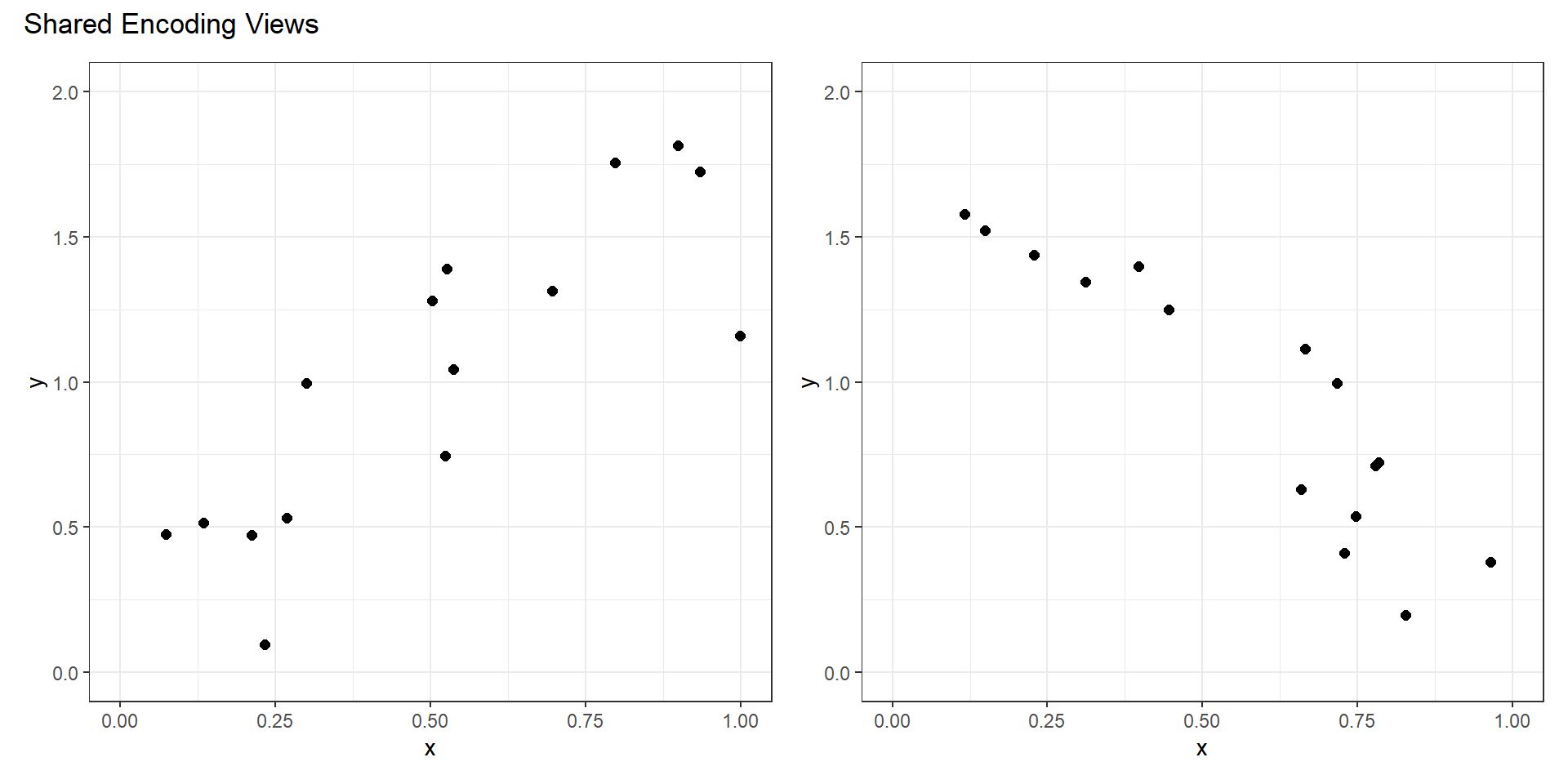
Shared Encoding

  • All channels have an identical visual encoding.
    • Simple to understand each panel.

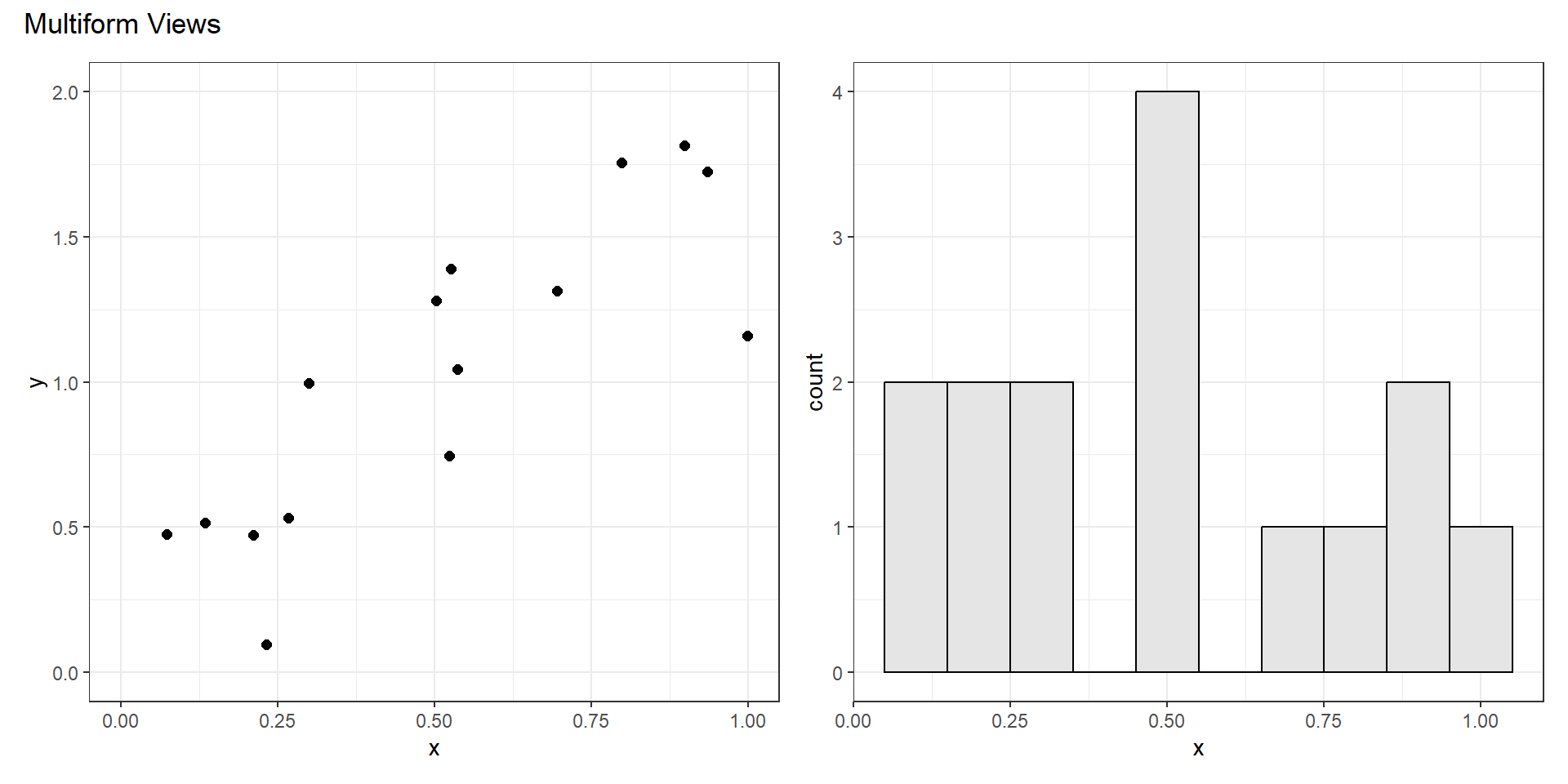
Multiform

  • Some, but not all channels are shared.
    • Could share one spatial dimension but not another.
    • Could use different marks or channels.
  • Linked highlighting can be useful to show corresponding data in both views.
    • Particularly useful in an interactive setting.

Share Data?

  • Shared data (all): both views show all the data.
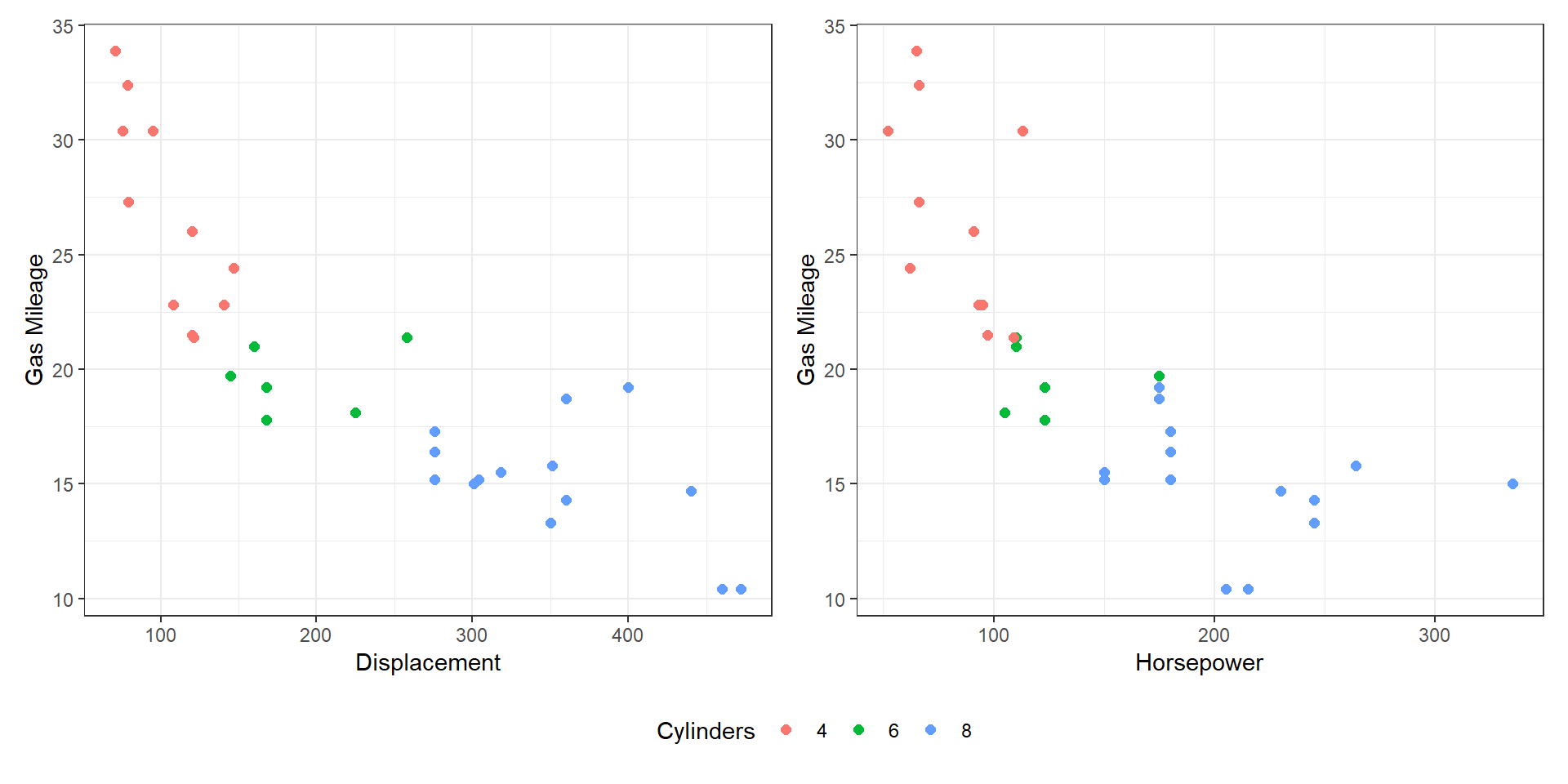
Share Data?

  • Overview-detail (some): one view shows all the data, the other shows detail.
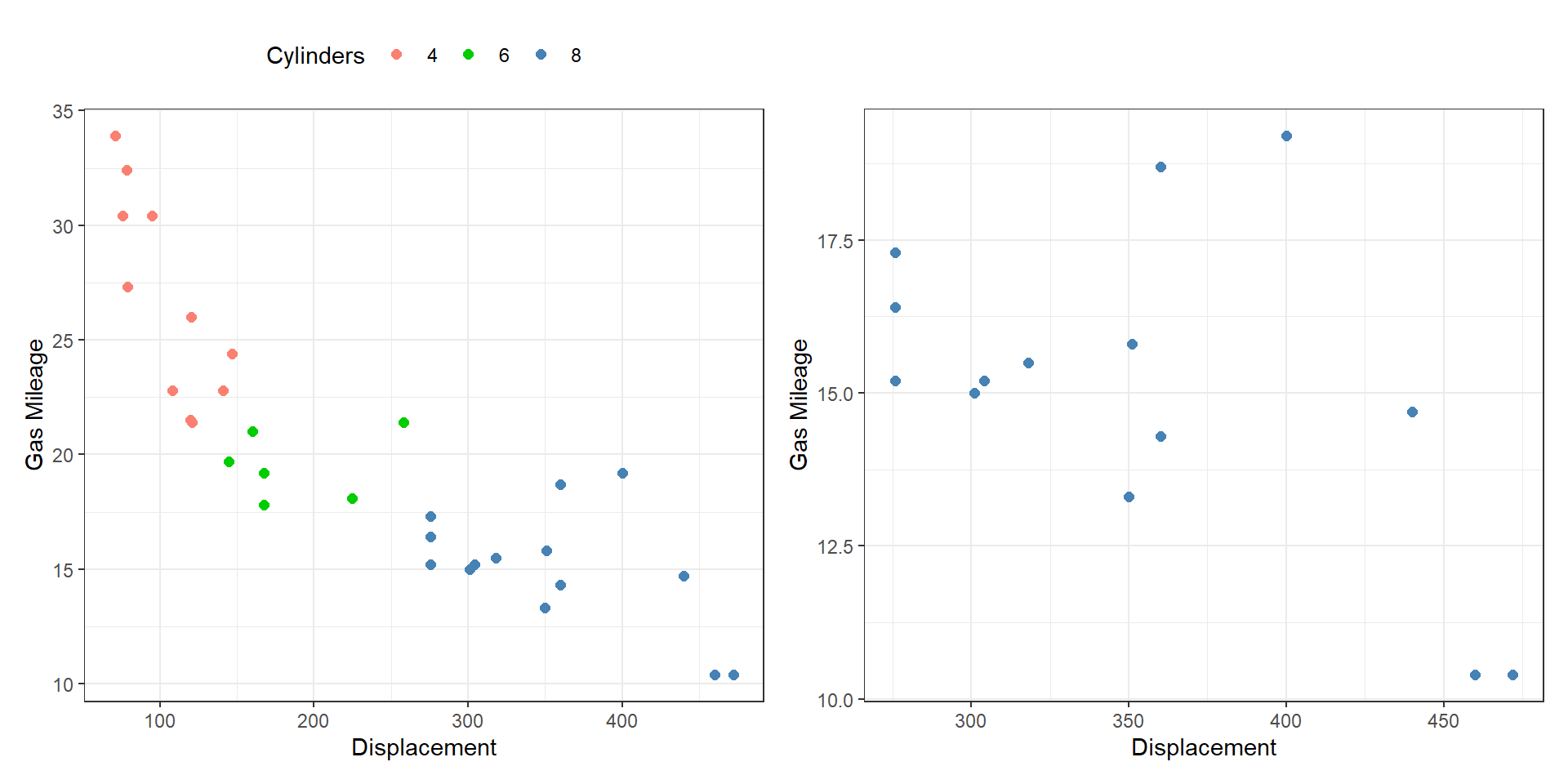
Share Data?

  • Small multiples (none): one view shows one subset, the other shows a different subset.
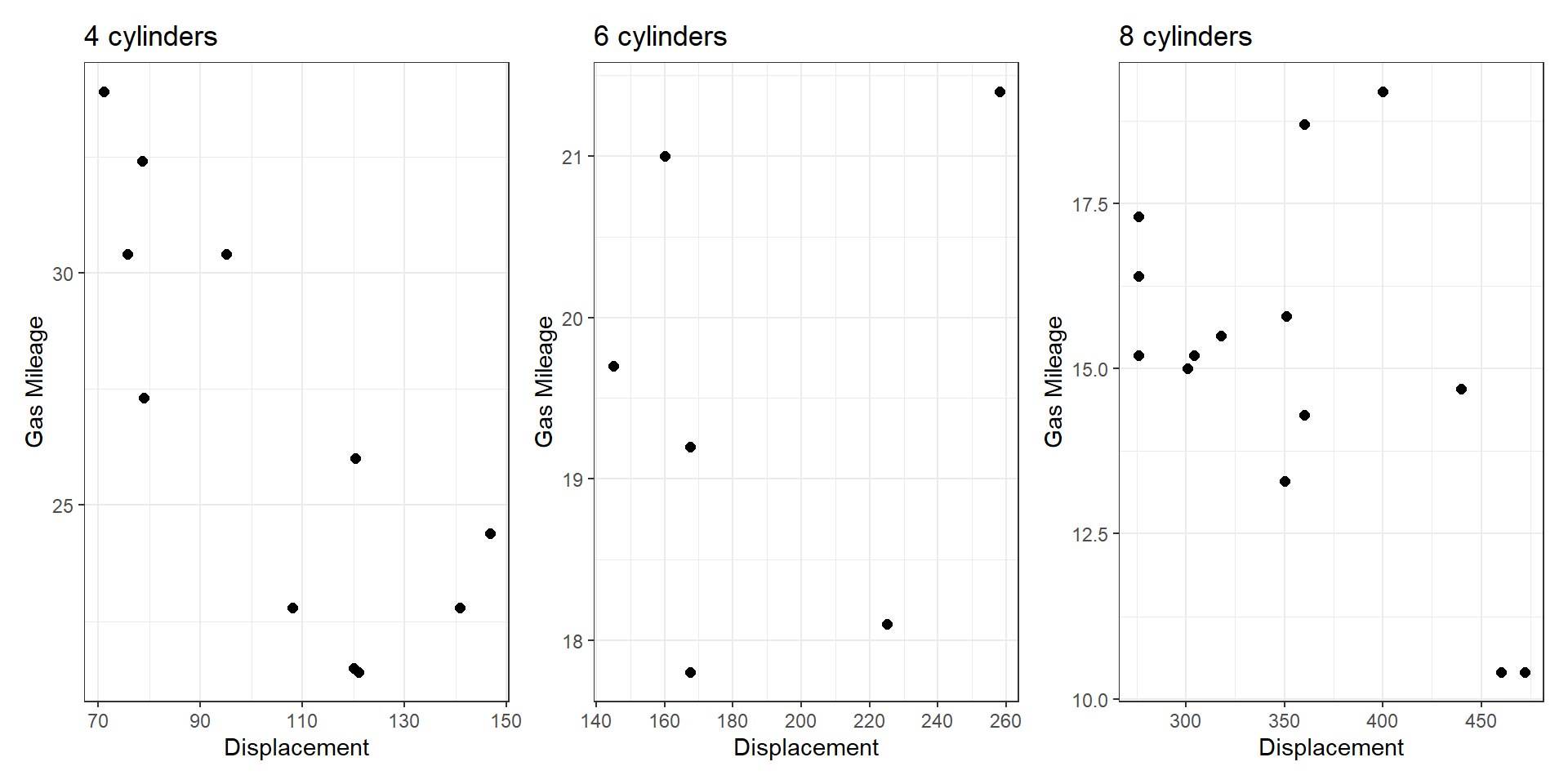
Share Encoding/Data?
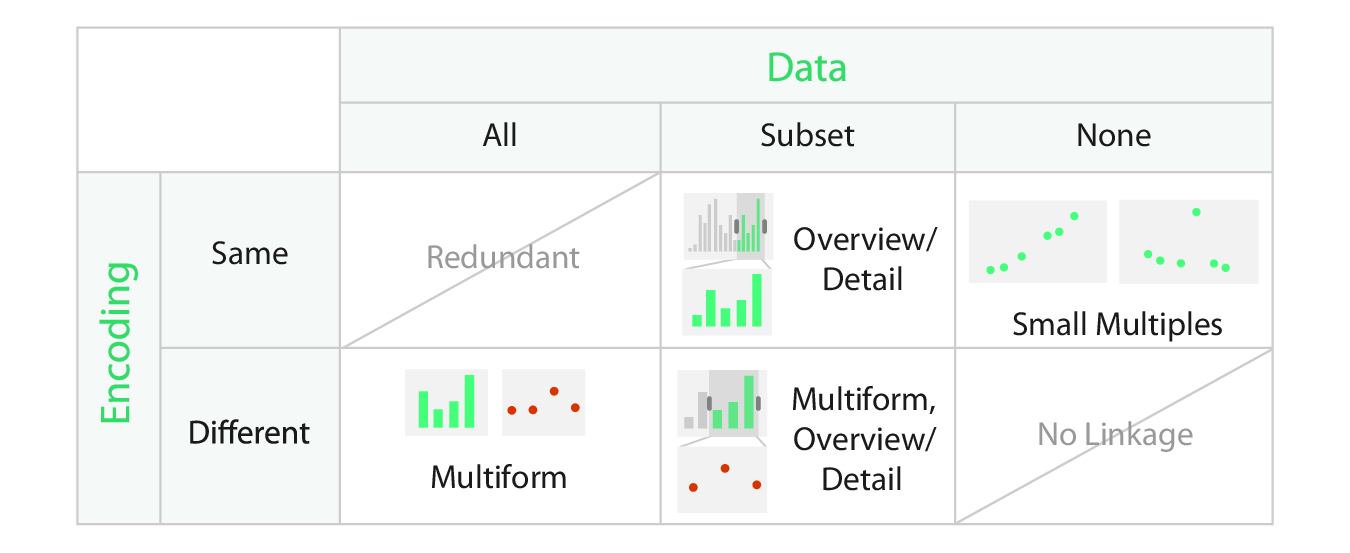
Fig. 12.6

Multi-panel Figures in R

Multi-panel Figures in R

  • There are many ways to compose multi-panel figures in R, including methods using base R graphics, ggplot2, accessory packages for ggplot2 objects, and other packages.

  • We’re just scratching the surface here, but I want to give you three different tools to get started with:

    • base R multi-panel plots,
    • faceting with ggplot2,
    • composing multi-panel plots with patchwork.
  • Some other packages you might want to look into:

Multi-panel: base R

Multi-panel: base R

  • Two methods for creating multi-panel figures using base R:
    • Set graphical parameters using par(),
    • Use layout().

Multi-panel: base R par()

  • Graphics devices in R have default graphical parameters.
  • You can print those parameters with par() (no arguments).
  • You can also change those parameters with par() (by adding arguments).
par()
$xlog
[1] FALSE

$ylog
[1] FALSE

$adj
[1] 0.5

$ann
[1] TRUE

$ask
[1] FALSE

$bg
[1] "white"

$bty
[1] "o"

$cex
[1] 1

$cex.axis
[1] 1

$cex.lab
[1] 1

$cex.main
[1] 1.2

$cex.sub
[1] 1

$cin
[1] 0.15 0.20

$col
[1] "black"

$col.axis
[1] "black"

$col.lab
[1] "black"

$col.main
[1] "black"

$col.sub
[1] "black"

$cra
[1] 28.8 38.4

$crt
[1] 0

$csi
[1] 0.2

$cxy
[1] 0.01712329 0.06329115

$din
[1] 9.999999 4.999999

$err
[1] 0

$family
[1] ""

$fg
[1] "black"

$fig
[1] 0 1 0 1

$fin
[1] 9.999999 4.999999

$font
[1] 1

$font.axis
[1] 1

$font.lab
[1] 1

$font.main
[1] 2

$font.sub
[1] 1

$lab
[1] 5 5 7

$las
[1] 0

$lend
[1] "round"

$lheight
[1] 1

$ljoin
[1] "round"

$lmitre
[1] 10

$lty
[1] "solid"

$lwd
[1] 1

$mai
[1] 1.02 0.82 0.82 0.42

$mar
[1] 5.1 4.1 4.1 2.1

$mex
[1] 1

$mfcol
[1] 1 1

$mfg
[1] 1 1 1 1

$mfrow
[1] 1 1

$mgp
[1] 3 1 0

$mkh
[1] 0.001

$new
[1] FALSE

$oma
[1] 0 0 0 0

$omd
[1] 0 1 0 1

$omi
[1] 0 0 0 0

$page
[1] TRUE

$pch
[1] 1

$pin
[1] 8.759999 3.159999

$plt
[1] 0.082 0.958 0.204 0.836

$ps
[1] 12

$pty
[1] "m"

$smo
[1] 1

$srt
[1] 0

$tck
[1] NA

$tcl
[1] -0.5

$usr
[1] 0 1 0 1

$xaxp
[1] 0 1 5

$xaxs
[1] "r"

$xaxt
[1] "s"

$xpd
[1] FALSE

$yaxp
[1] 0 1 5

$yaxs
[1] "r"

$yaxt
[1] "s"

$ylbias
[1] 0.2

Multi-panel: base R par()

  • If you’re going to change the parameters inside a function, it is best practice to store and restore the defaults.
my_fun <- function(...) {
  opar <- par(no.readonly = TRUE)
  
  # Do the things for the function here
  
  # When you're done, reset parameters:
  par(opar)
}

Multi-panel: base R par()

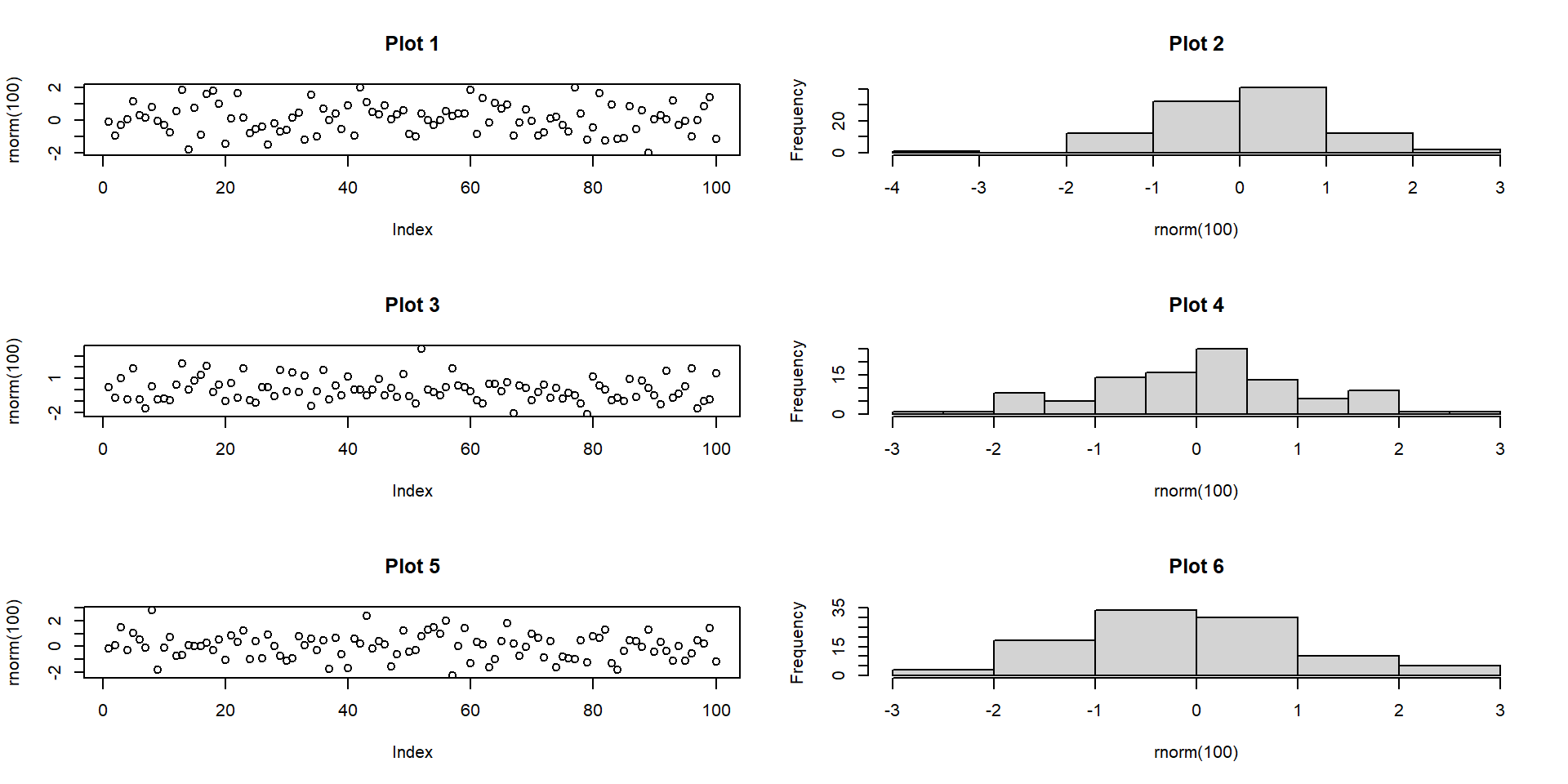
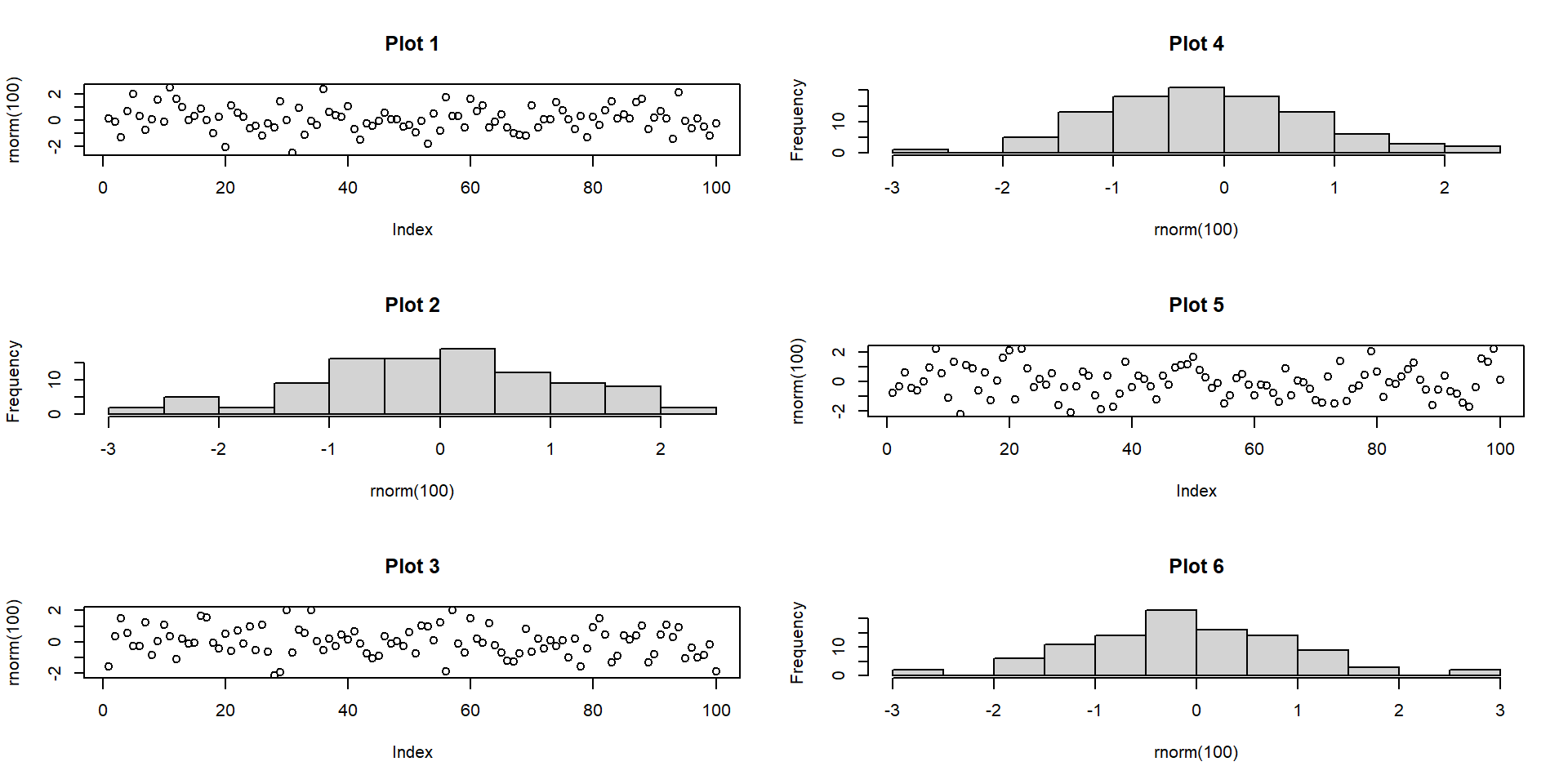
  • To create a multi-panel figure, change the graphical parameters mfrow or mfcol.
    • Specifies the number of rows and columns in the display: c(nr, nc)
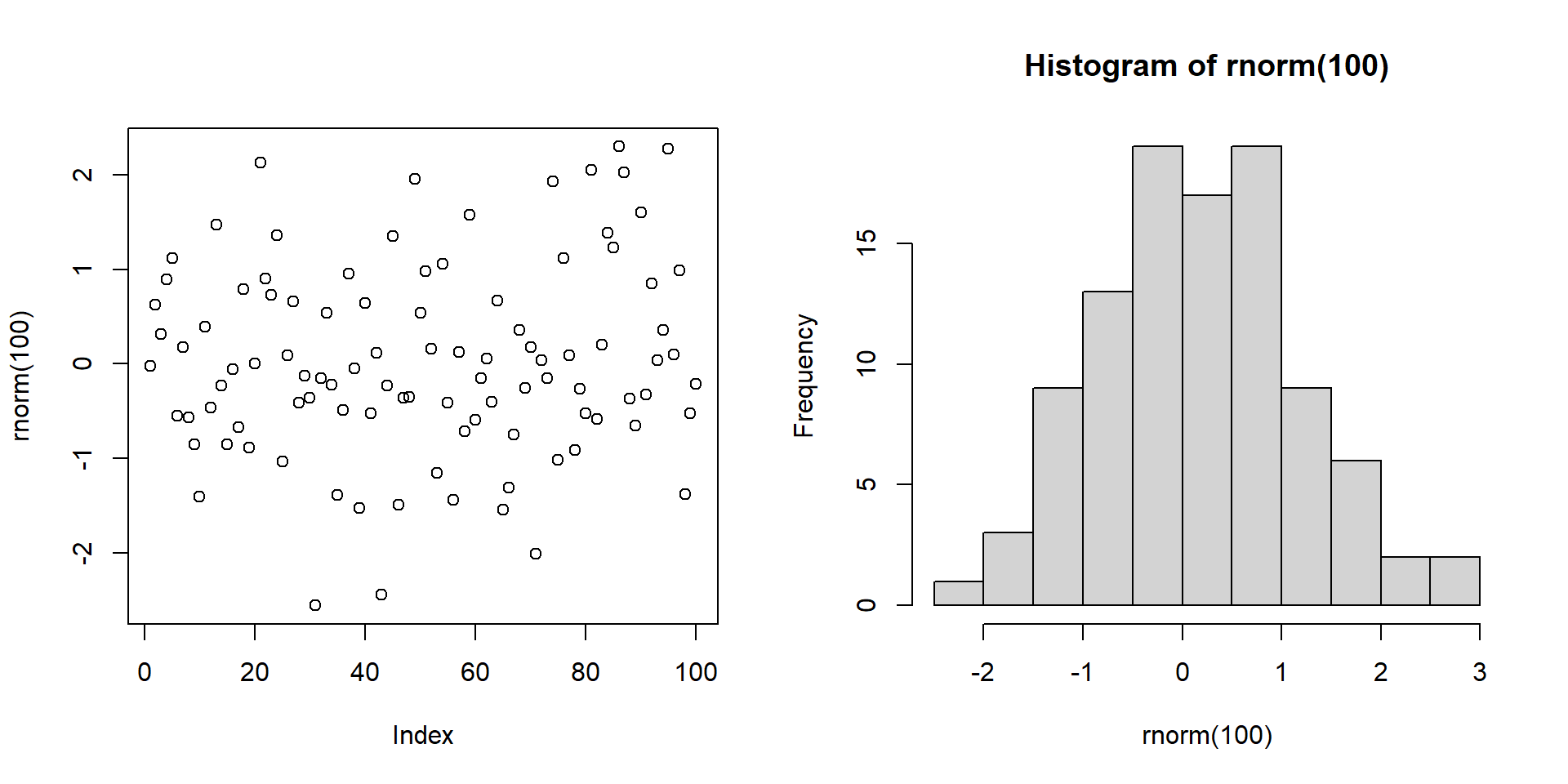
    • Multiple calls to plot() are drawn in subsequent rows/columns
      • mfrow causes the plots to be drawn by rows
      • mfcol causes the plots to be drawn by columns
Code
par(mfrow = c(1, 2))
plot(rnorm(100))
hist(rnorm(100))

Multi-panel: base R par()

  • Use of mfrow
Code
par(mfrow = c(3, 2))
plot(rnorm(100), main = "Plot 1")
hist(rnorm(100), main = "Plot 2")
plot(rnorm(100), main = "Plot 3")
hist(rnorm(100), main = "Plot 4")
plot(rnorm(100), main = "Plot 5")
hist(rnorm(100), main = "Plot 6")

Multi-panel: base R par()

  • Use of mfcol
Code
par(mfcol = c(3, 2))
plot(rnorm(100), main = "Plot 1")
hist(rnorm(100), main = "Plot 2")
plot(rnorm(100), main = "Plot 3")
hist(rnorm(100), main = "Plot 4")
plot(rnorm(100), main = "Plot 5")
hist(rnorm(100), main = "Plot 6")

Multi-panel: base R layout()

  • Using layout() allows finer control over the layout using a matrix.
    • For example, you can allow a single plot to take up multiple slots.
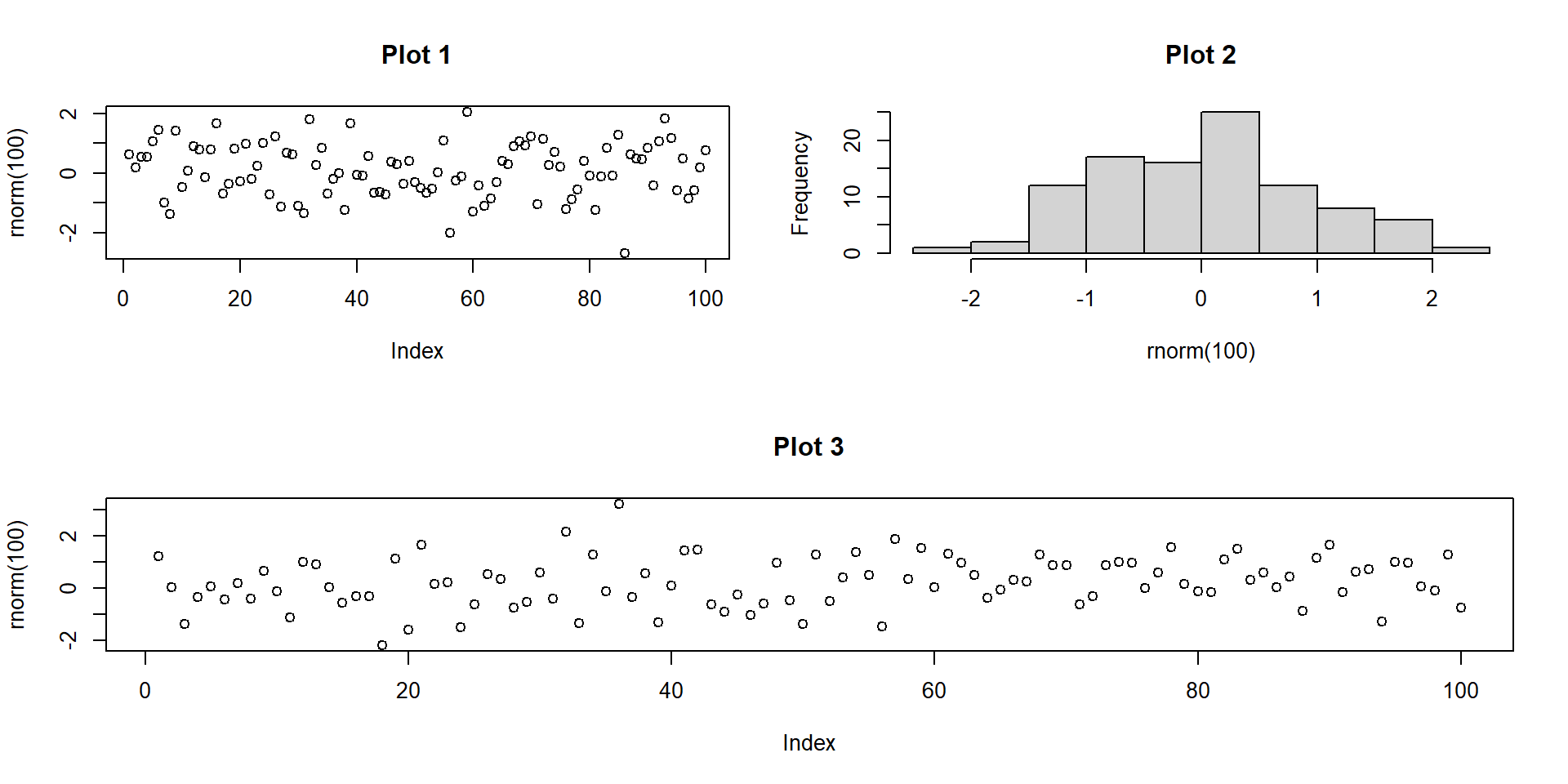
Code
mat <- matrix(c(1, 2, 3, 3), nrow = 2, ncol = 2, byrow = TRUE)
layout(mat)

plot(rnorm(100), main = "Plot 1")
hist(rnorm(100), main = "Plot 2")
plot(rnorm(100), main = "Plot 3")

Multi-panel: base R layout()

  • There is also function layout.show() which will show the current layout for planning something complex.
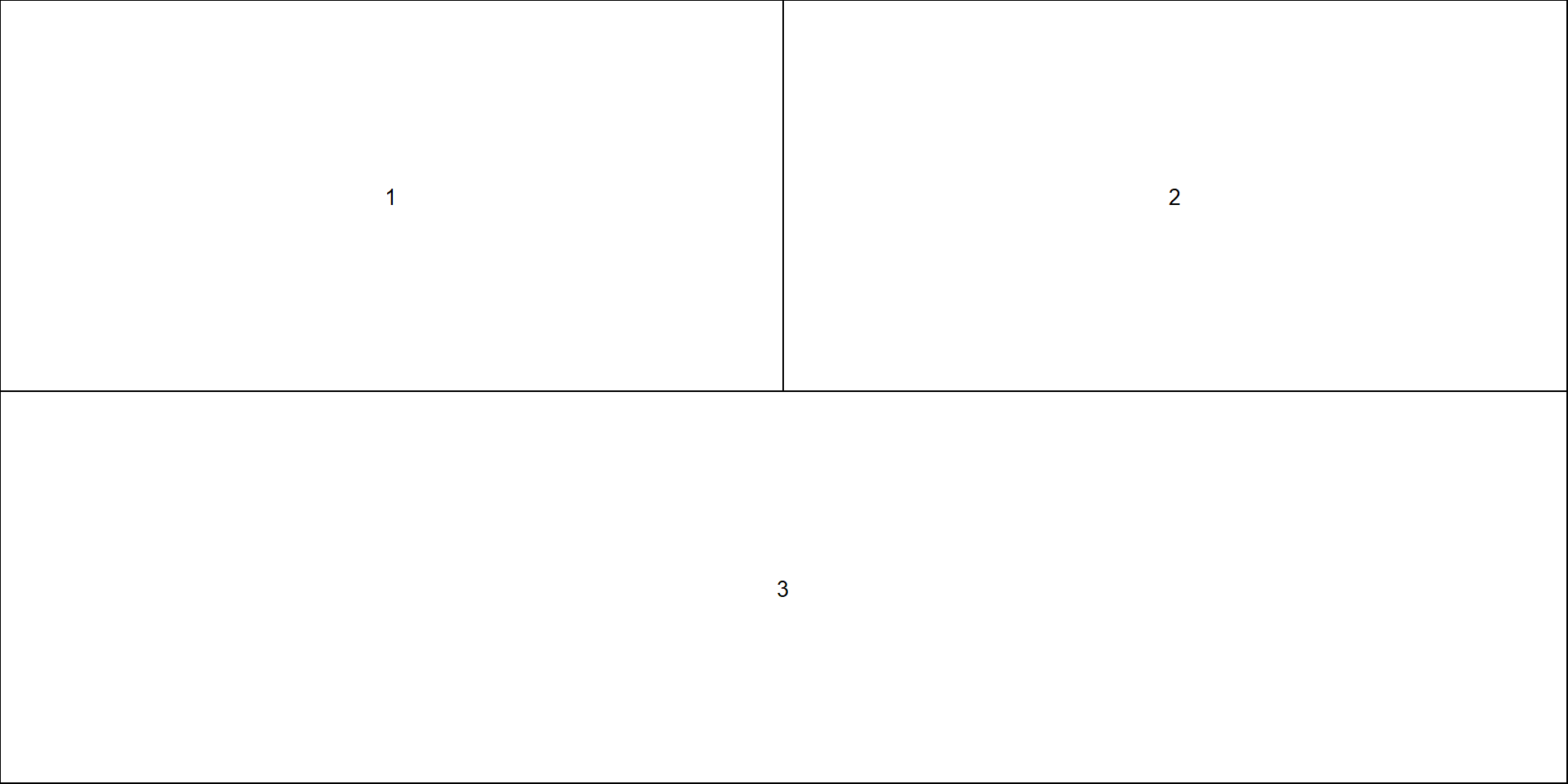
Code
mat <- matrix(c(1, 2, 3, 3), nrow = 2, ncol = 2, byrow = TRUE)
layout(mat)

# Can be useful to show how paging will occur if n > max(mat)
layout.show(n = 3)

Faceting with ggplot2

Faceting with ggplot2

  • We’ve already seen some examples of using the facet_*() functions in ggplot2.
  • Let’s make sure we make the different options clear here.
    • facet_wrap()
    • facet_grid()
    • facet_null() (for the sake of completeness)

Faceting with ggplot2

  • facet_wrap() wraps a 1D sequence of panels to fit in the window.
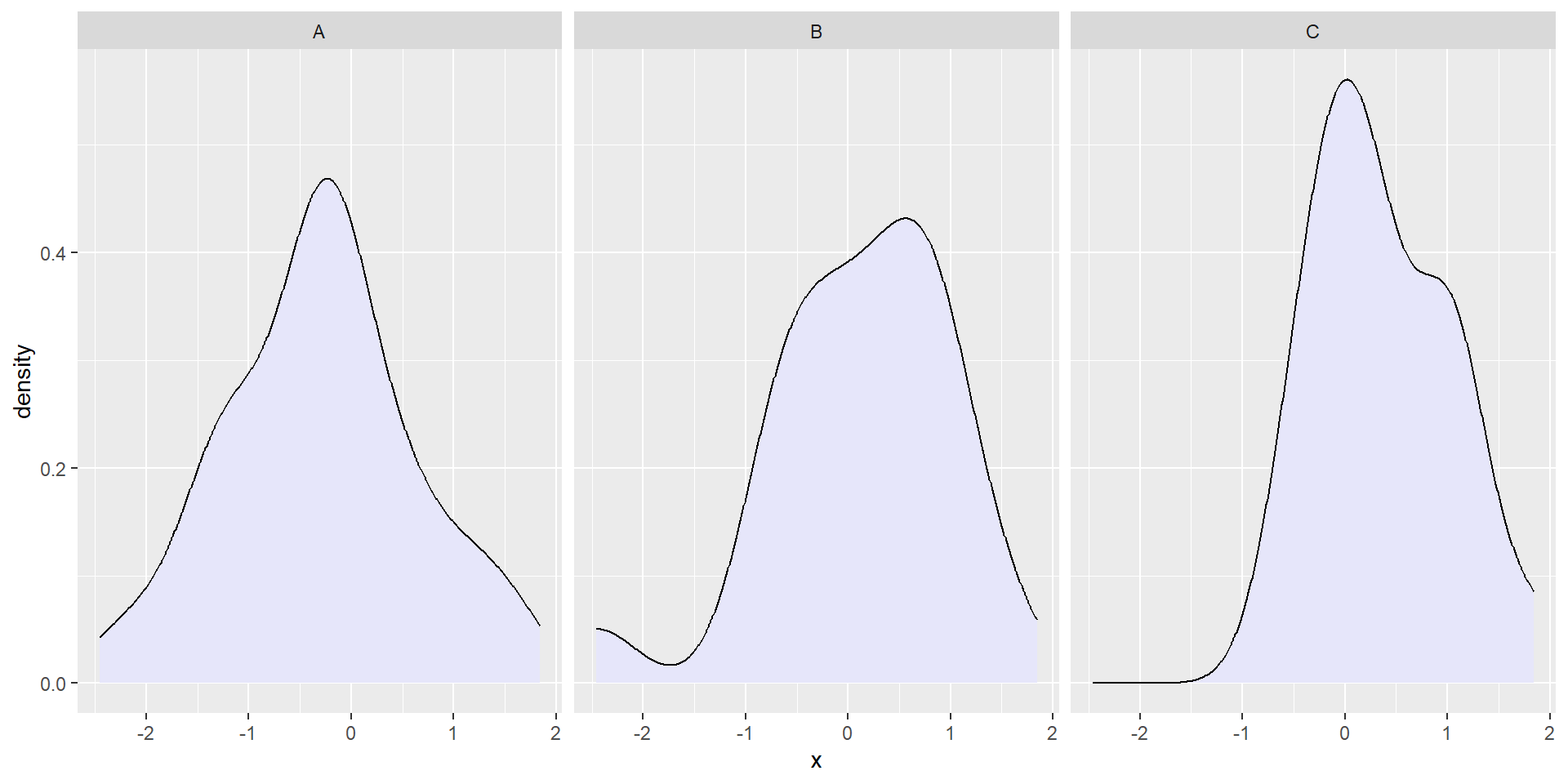
Code
expand.grid(n = 1:20, label = LETTERS[1:3]) %>% 
  mutate(x = rnorm(nrow(.))) %>% 
  ggplot(aes(x = x)) +
  geom_density(fill = "lavender") +
  facet_wrap(~ label)

Faceting with ggplot2

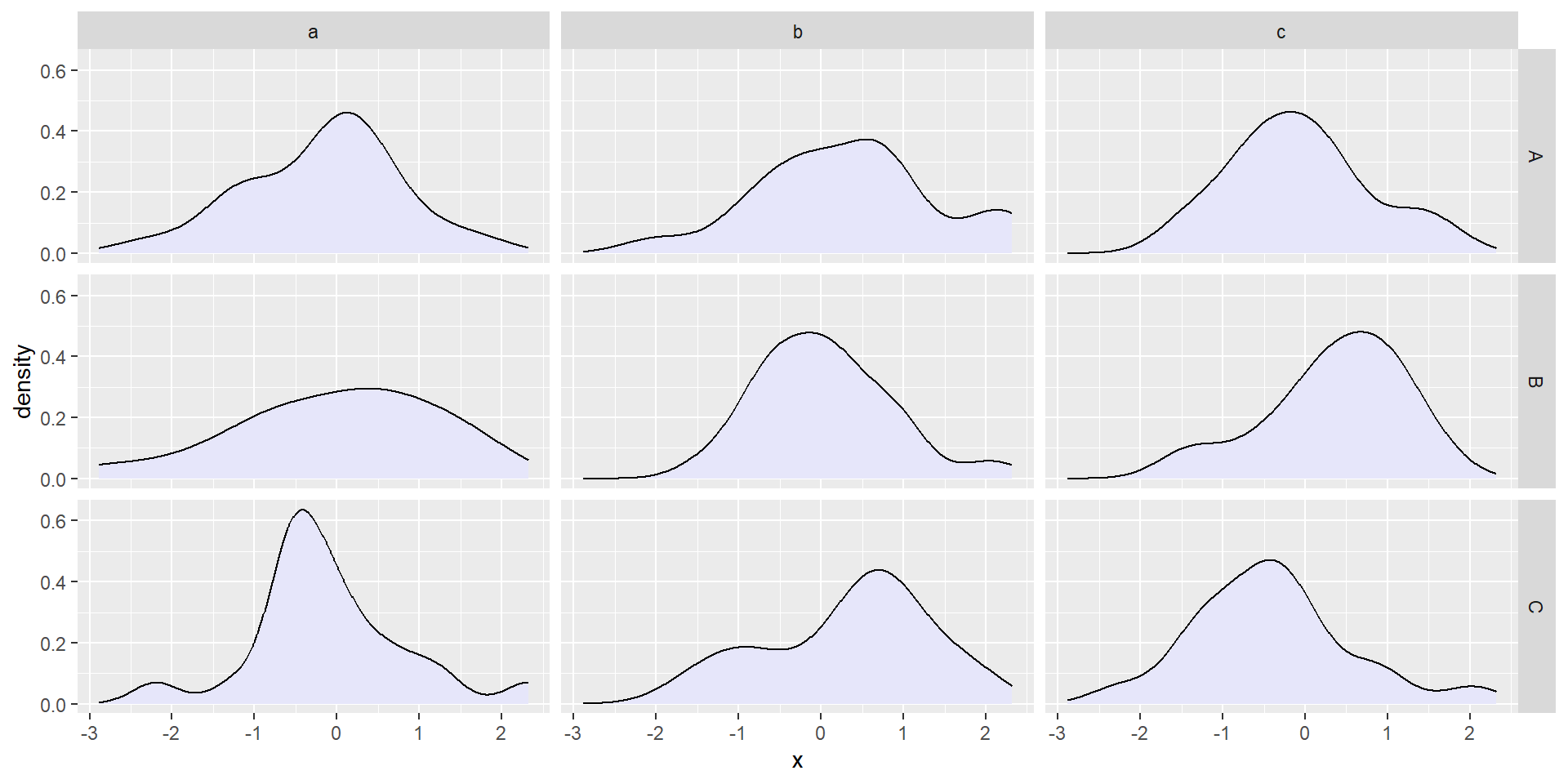
  • facet_grid() forms a matrix of panels defined by rows and columns.
Code
expand.grid(n = 1:20, row = LETTERS[1:3], col = letters[1:3]) %>% 
  mutate(x = rnorm(nrow(.))) %>% 
  ggplot(aes(x = x)) +
  geom_density(fill = "lavender") +
  facet_grid(row ~ col)

Faceting with ggplot2

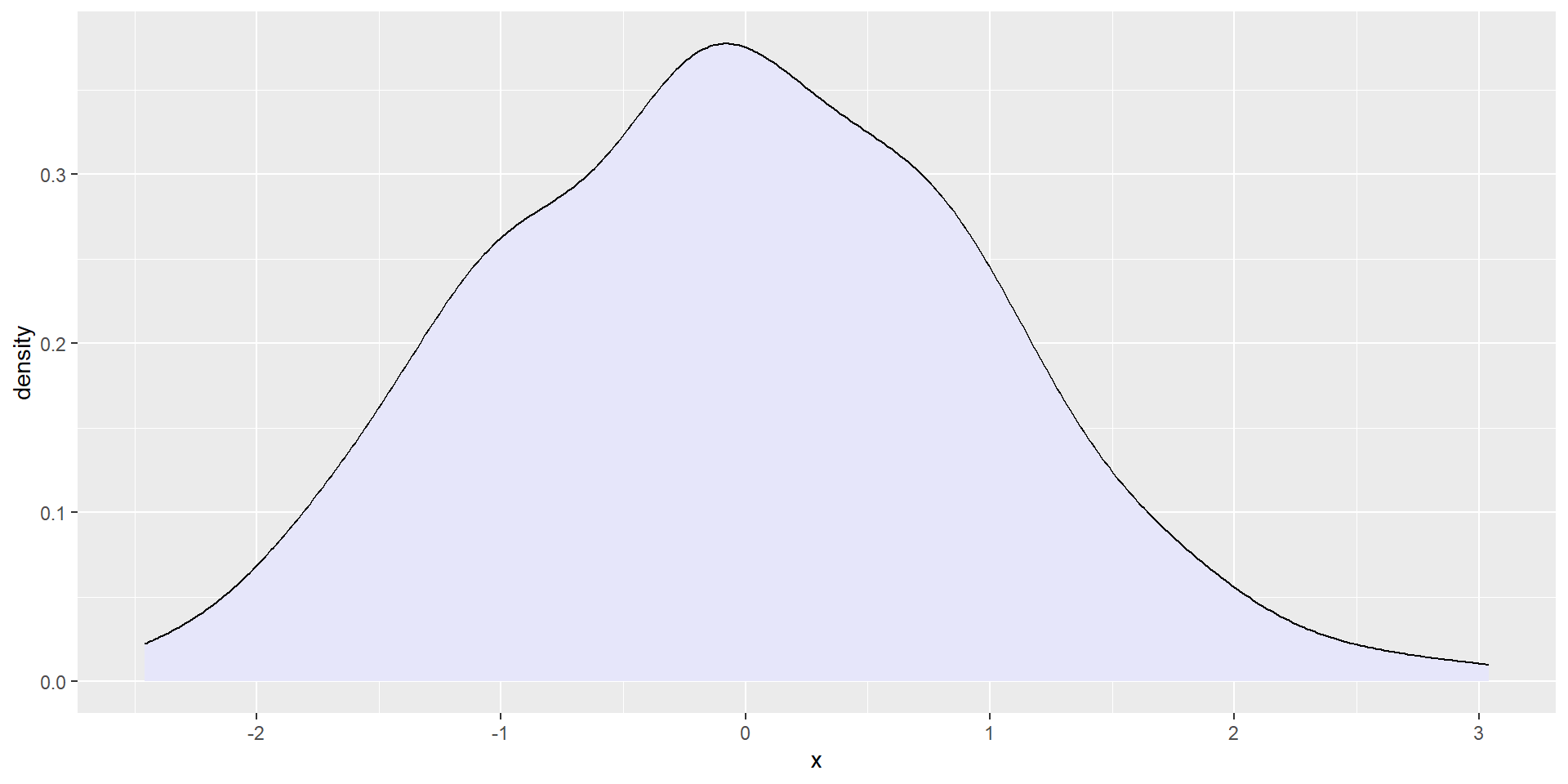
  • facet_null() means no faceting, and can be used to override one of the others.
Code
pp <- expand.grid(n = 1:20, row = LETTERS[1:3], col = letters[1:3]) %>% 
  mutate(x = rnorm(nrow(.))) %>% 
  ggplot(aes(x = x)) +
  geom_density(fill = "lavender") +
  facet_grid(row ~ col)

pp + facet_null()

Composing with patchwork

Composing with patchwork


The goal of patchwork is to make it ridiculously simple to combine separate ggplots into the same graphic…

patchwork

Composing with patchwork

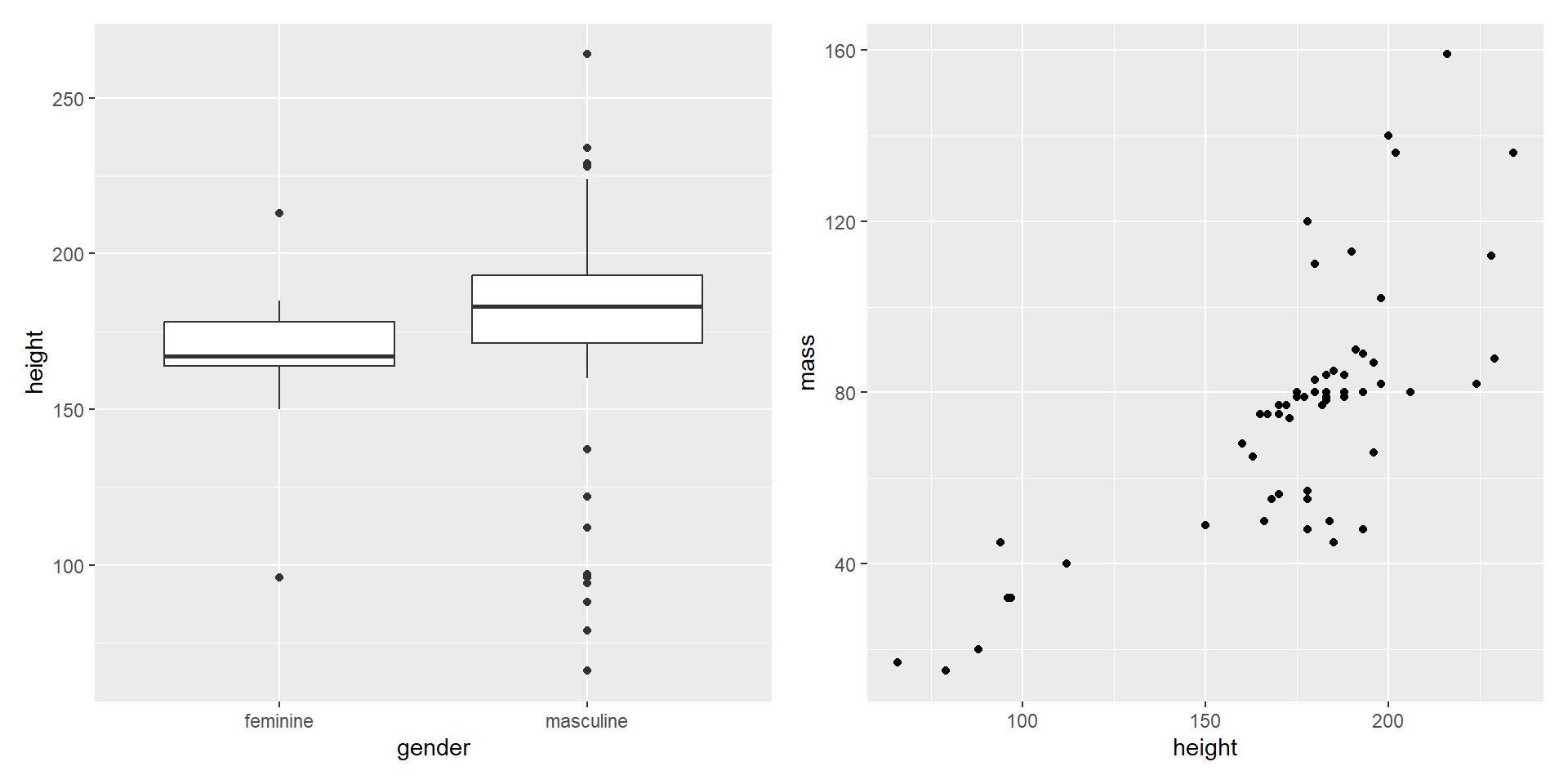
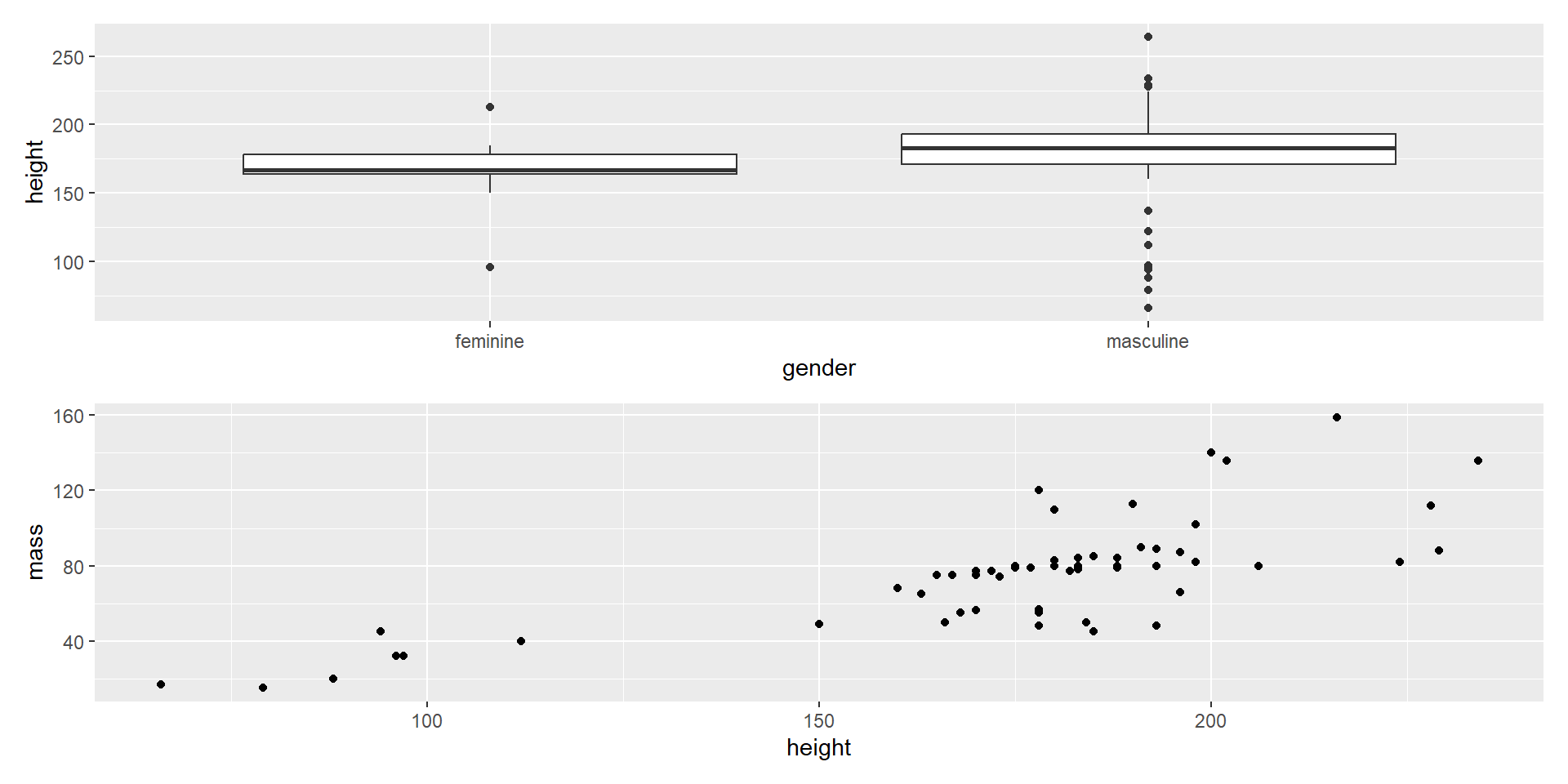
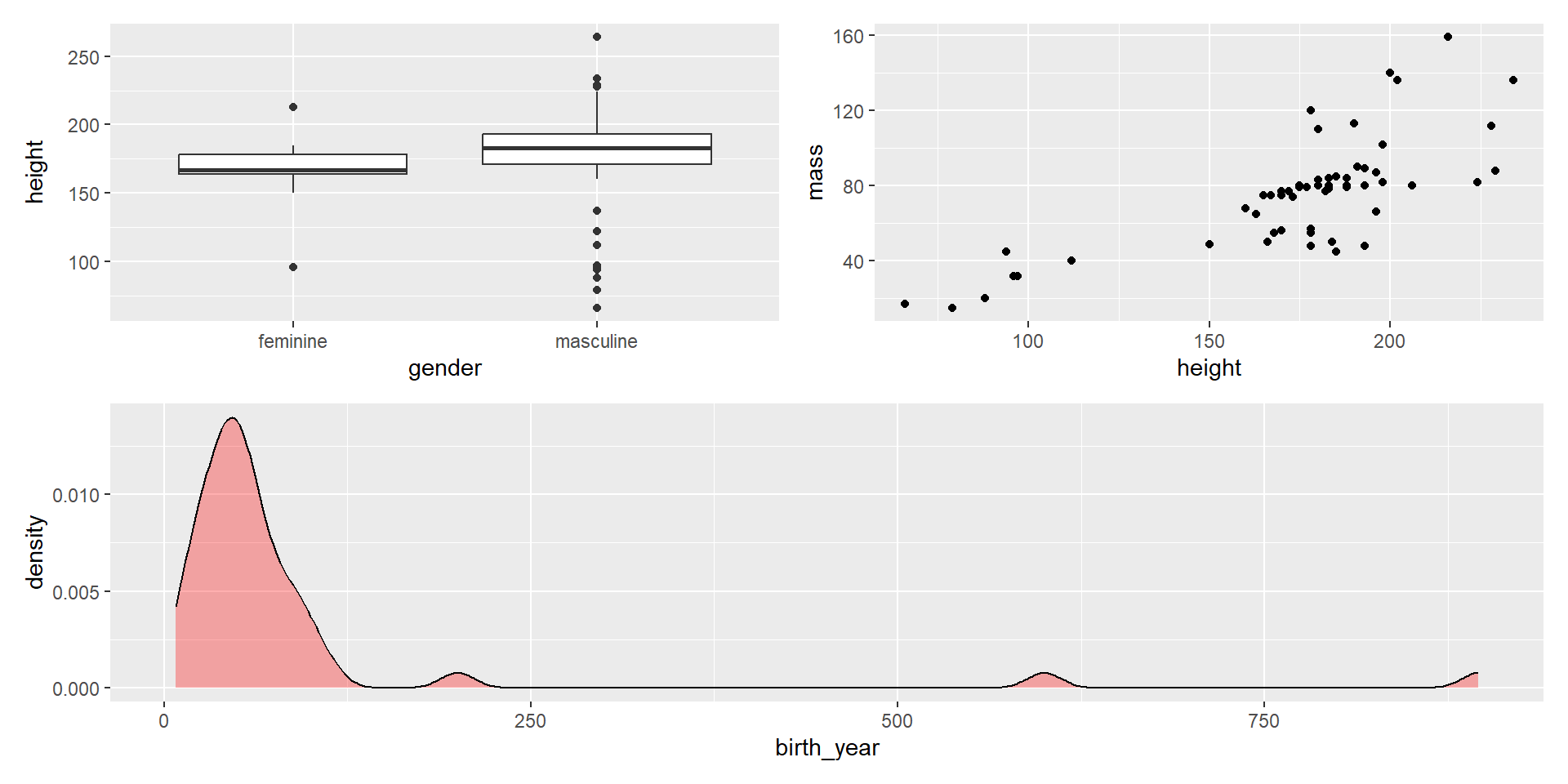
  • The main thing that makes it “ridiculously simple” is the arithmetic operators to combine plots.
    • Combine in a row with +
    • Combine in a column with /
    • Group plots to increase complexity with ()
Composing with patchwork

  • Create 3 plots, named p1, p2, and p3 to demonstrate.
p1 <- starwars %>% 
  filter(!is.na(gender)) %>% 
  ggplot() +
  geom_boxplot(aes(x = gender, y = height))

p2 <- starwars %>% 
  filter(mass < 500) %>% 
  ggplot() +
  geom_point(aes(x = height, y = mass))

p3 <- starwars %>% 
  filter(!is.na(birth_year)) %>% 
  ggplot() +
  geom_density(aes(x = birth_year), fill = "#ff000050")

Composing with patchwork

  • Combine in a row with +
p1 + p2

Composing with patchwork

  • Combine in a column with /
p1 / p2

Composing with patchwork

  • Group plots to increase complexity with ()
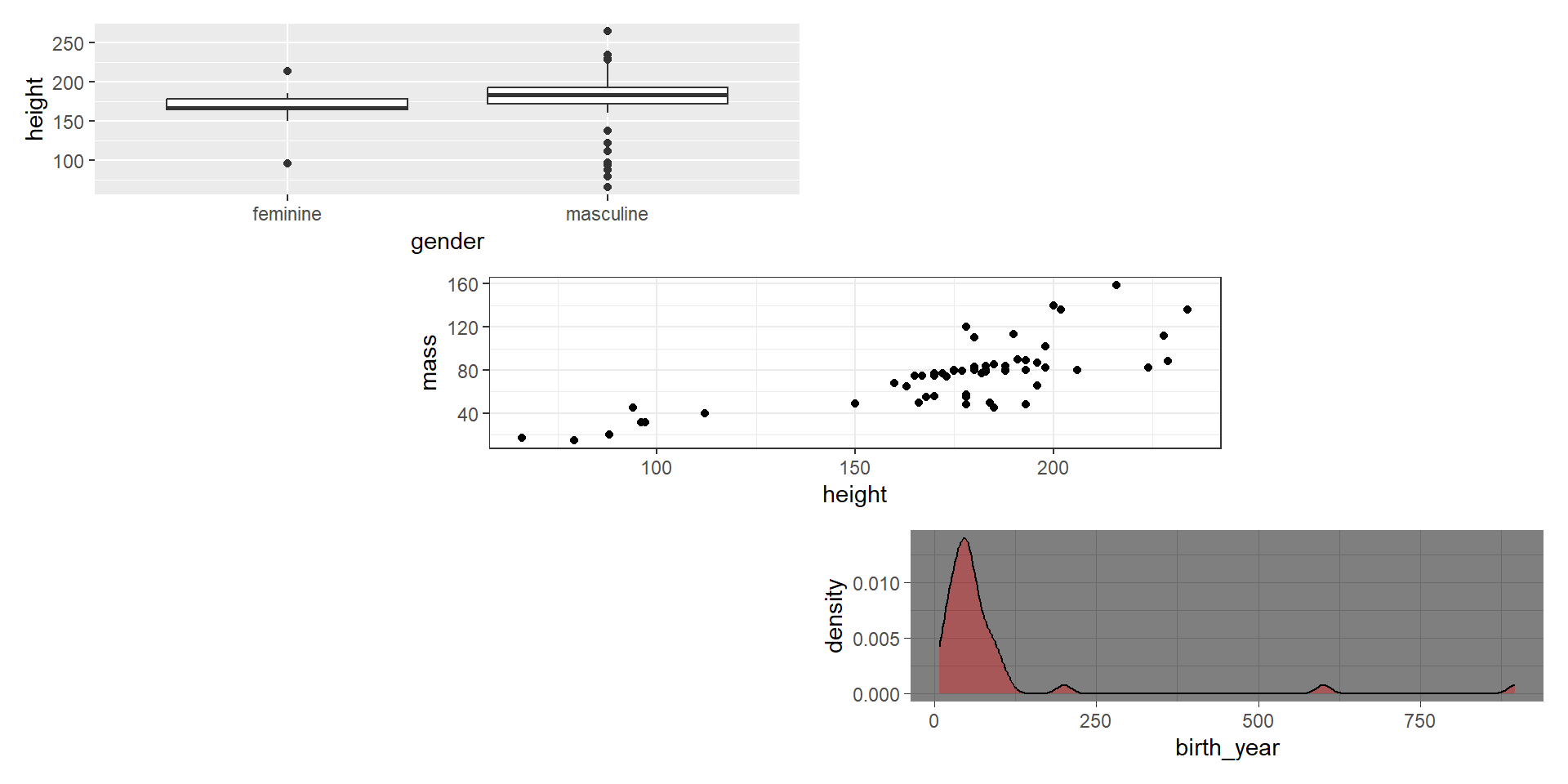
(p1 + p2)/p3

Composing with patchwork

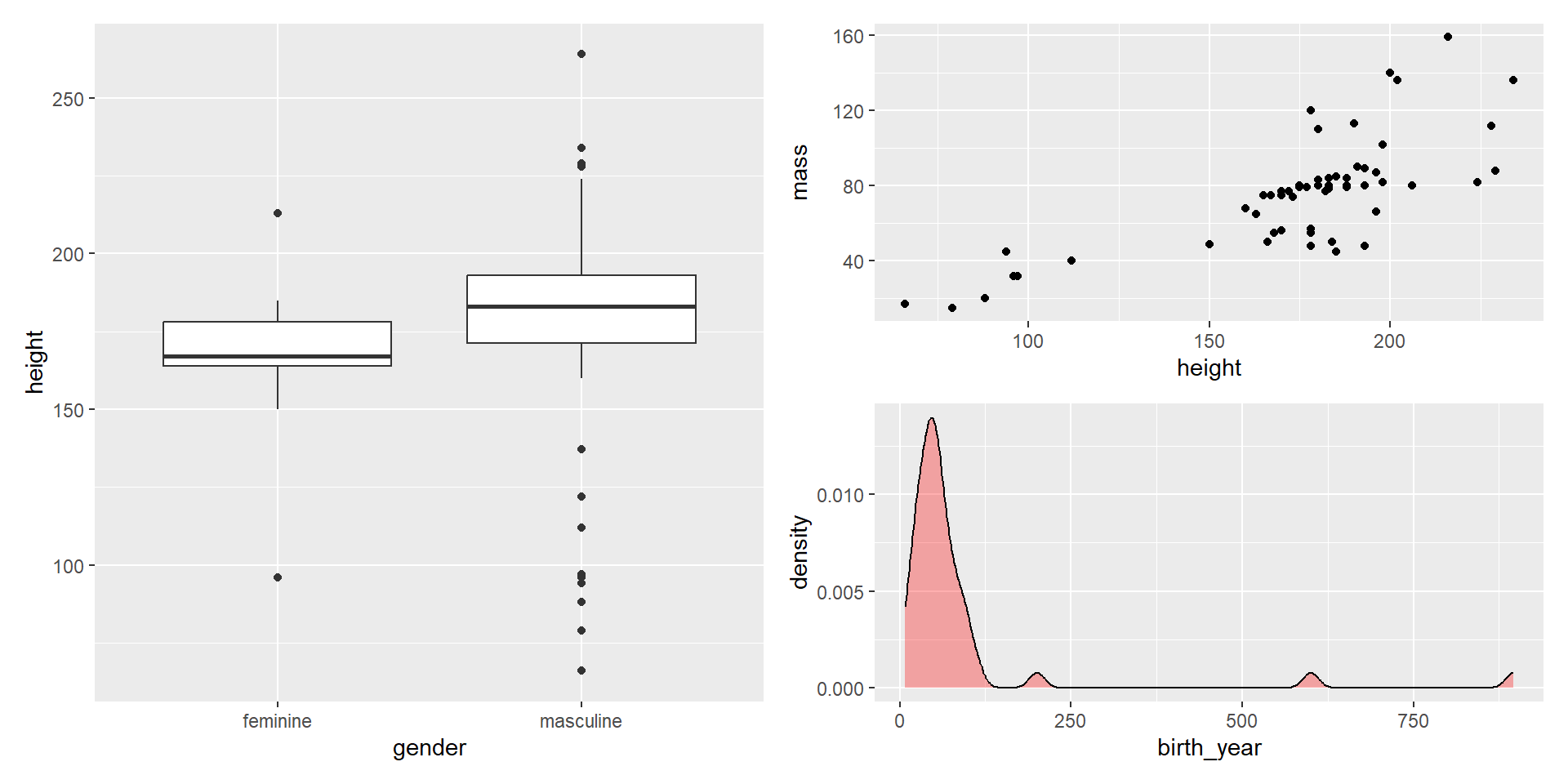
  • Group plots to increase complexity with ()
p1 + (p2/p3)

Composing with patchwork

  • For more fine-scale control (and options), use plot_layout().
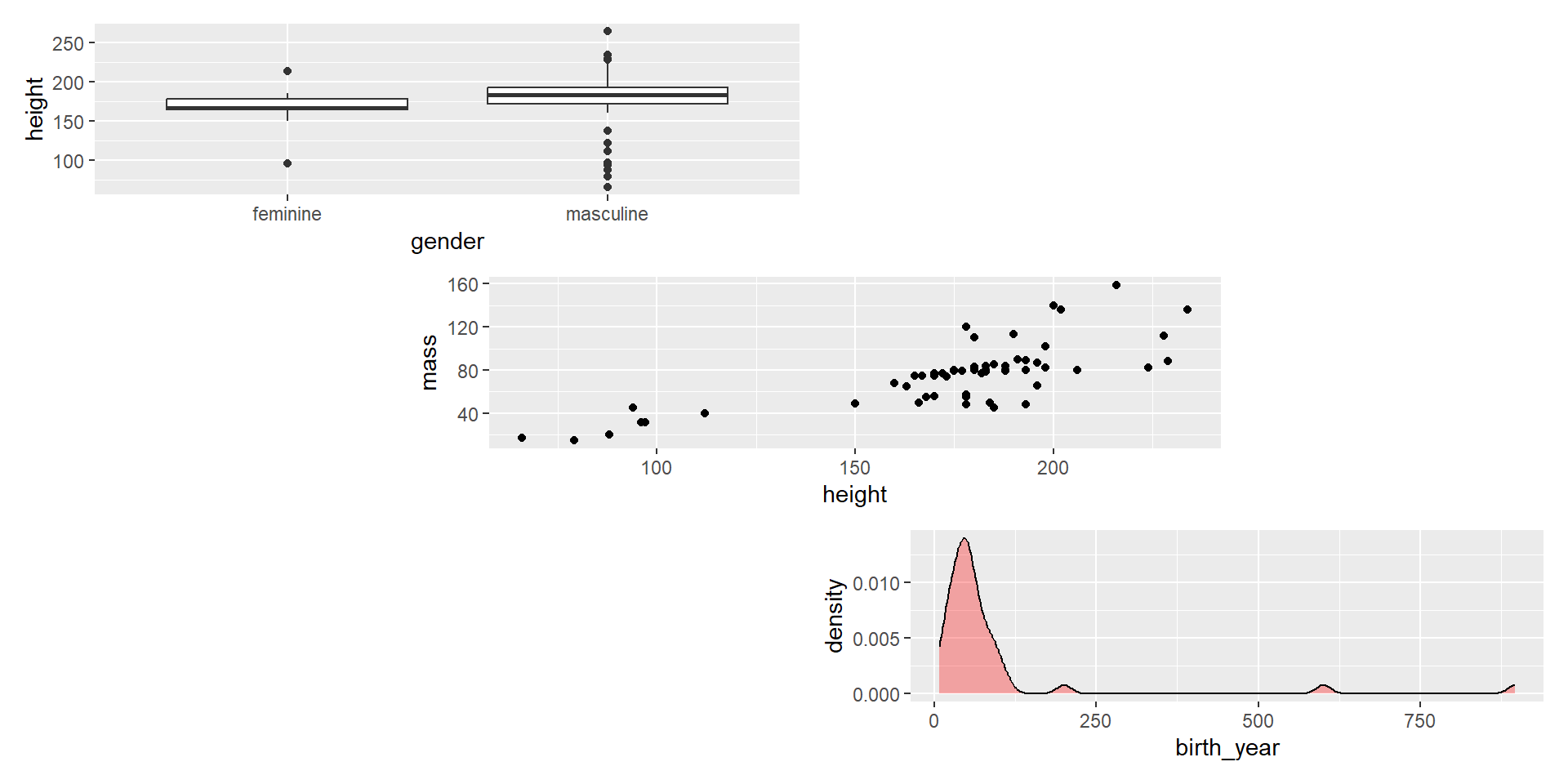
# Layout design as a text string
des <- "AA##
        #BB#
        ##CC"

p1 + p2 + p3 + plot_layout(design = des)

Composing with patchwork

  • Add annotations with plot_annotation().
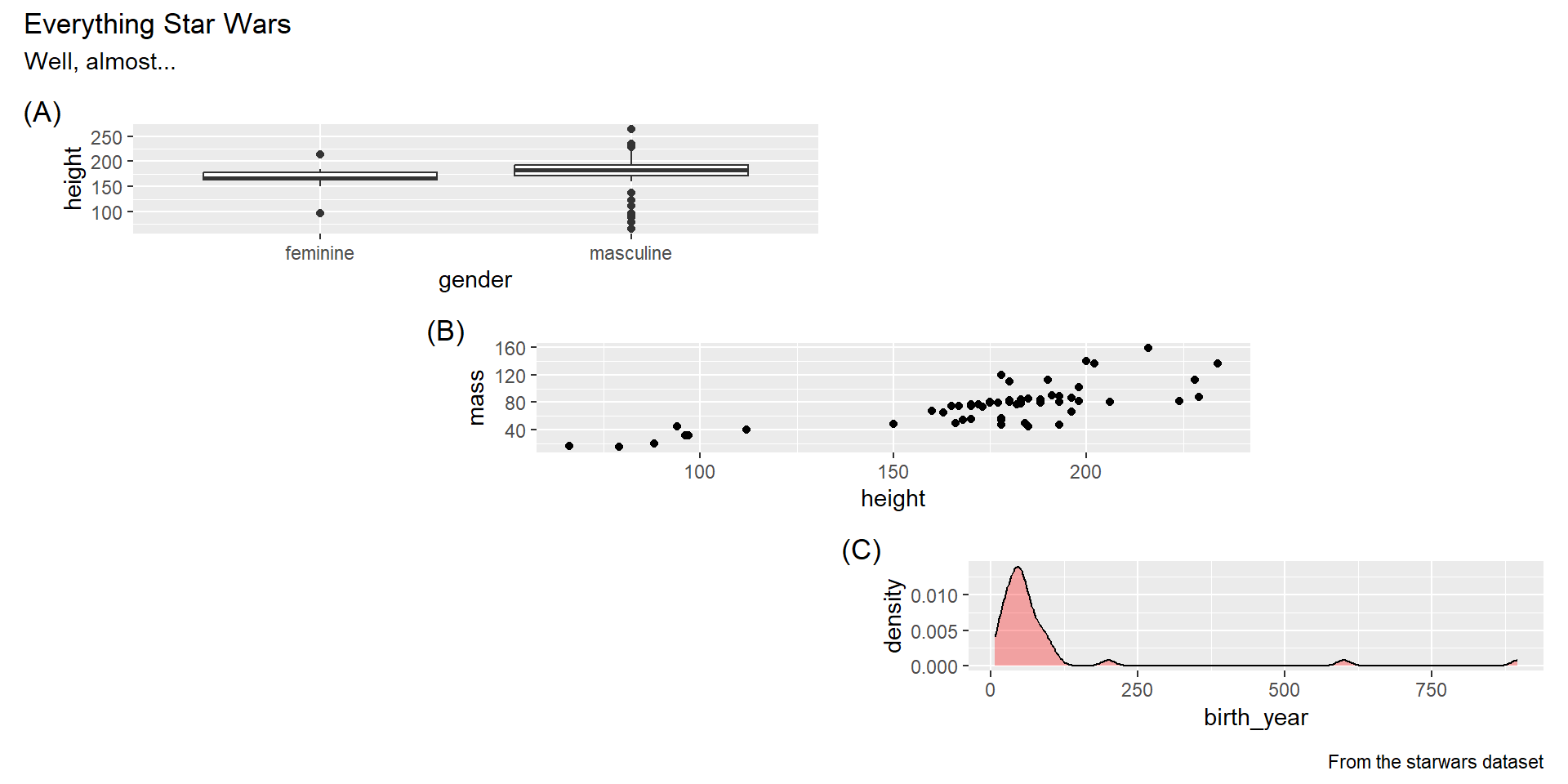
p1 + p2 + p3 + plot_layout(design = des) +
  plot_annotation(title = "Everything Star Wars", subtitle = "Well, almost...",
                  caption = "From the starwars dataset",
                  tag_levels = "A",
                  tag_prefix = "(", tag_suffix = ")")

Composing with patchwork

  • You can still add to existing plots…
p1 + (p2 + theme_bw()) + (p3 + theme_dark()) + plot_layout(design = des)

Composing with patchwork

  • … but you can change the theme of all plots with &.
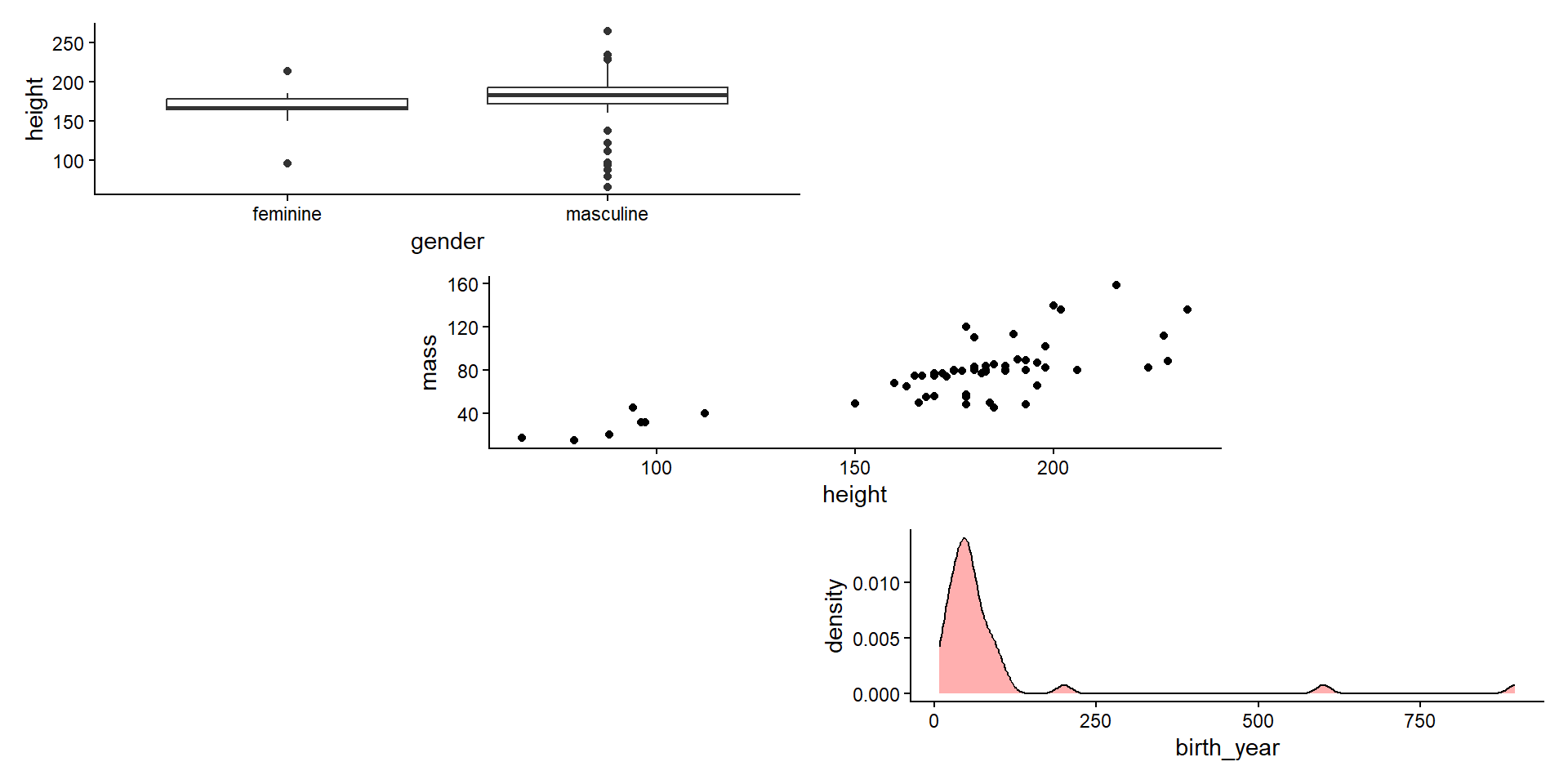
p1 + p2 + p3 + plot_layout(design = des) &
  theme_classic()

Composing with patchwork

  • Create plots with legends.
l1 <- starwars %>% 
  filter(!is.na(gender)) %>% 
  ggplot() +
  geom_point(aes(x = gender, y = height, color = gender))

l2 <- starwars %>% 
  filter(mass < 500, !is.na(gender)) %>% 
  ggplot() +
  geom_point(aes(x = height, y = mass, color = gender))

Composing with patchwork

  • Plots with legends will show the legend.
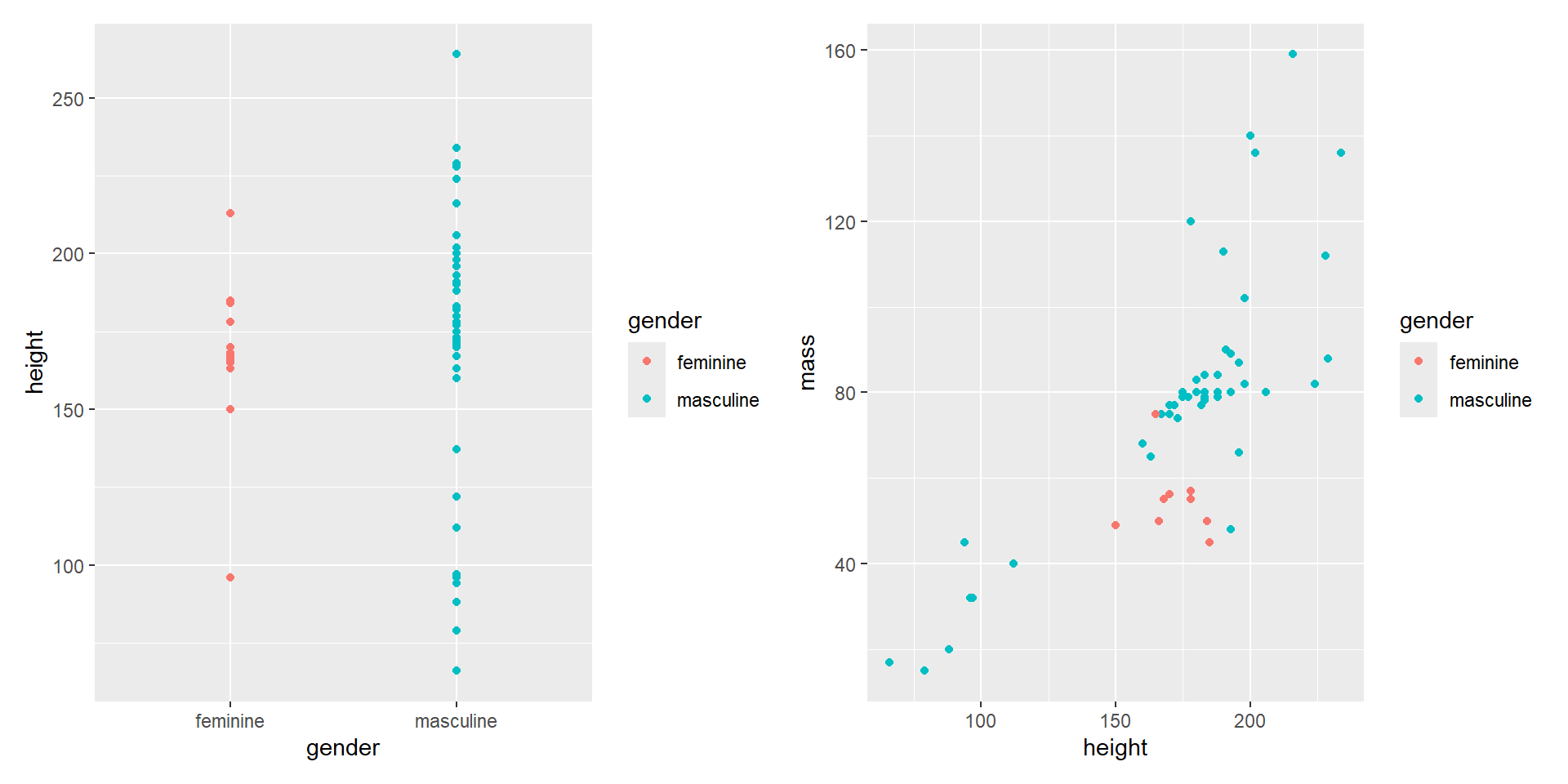
l1 + l2

Composing with patchwork

  • You can also “collect” all the legends.
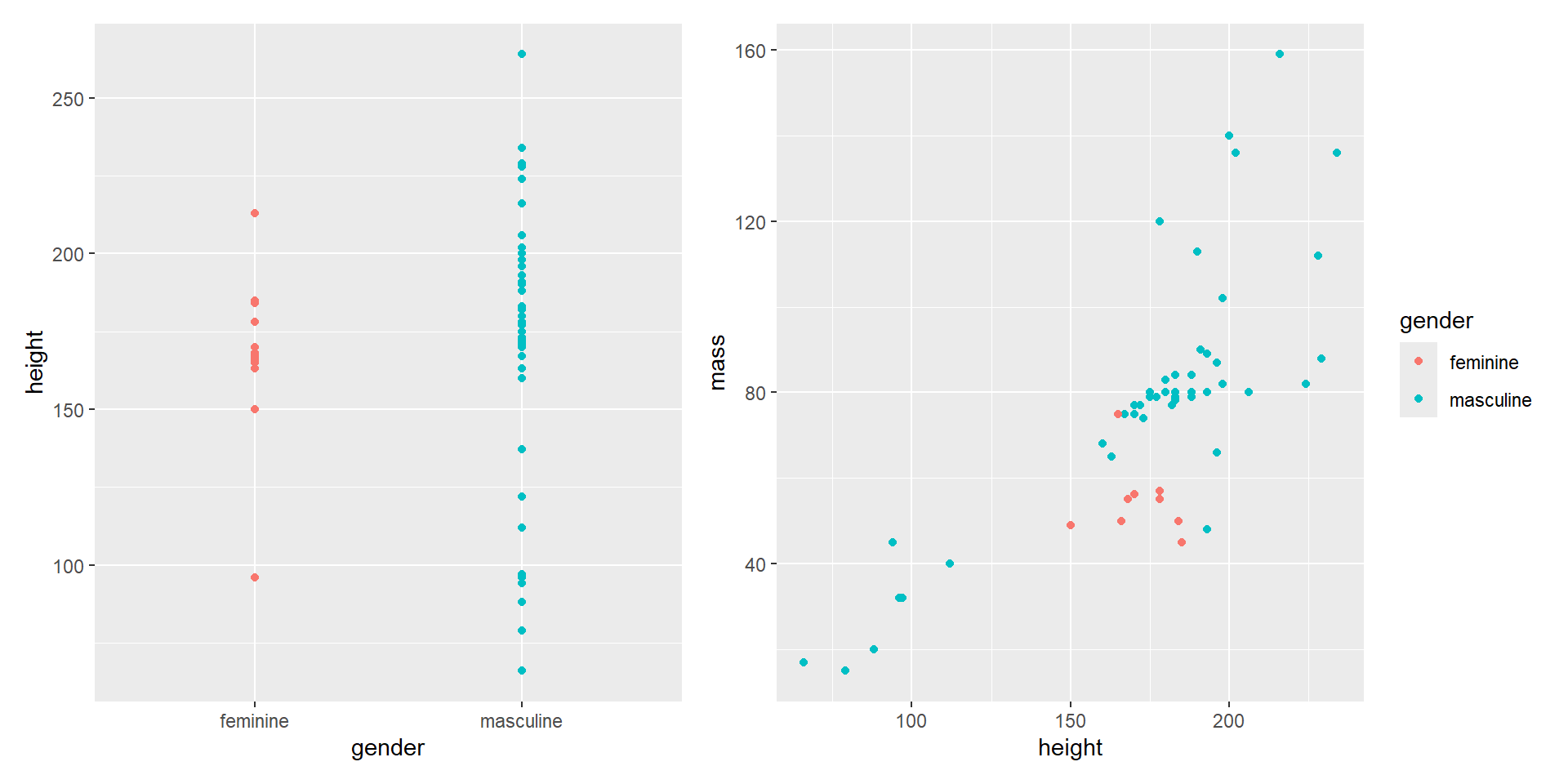
l1 + l2 + plot_layout(guides = "collect")

Composing with patchwork

  • You can also use & to change all the legend positions that are being collected.
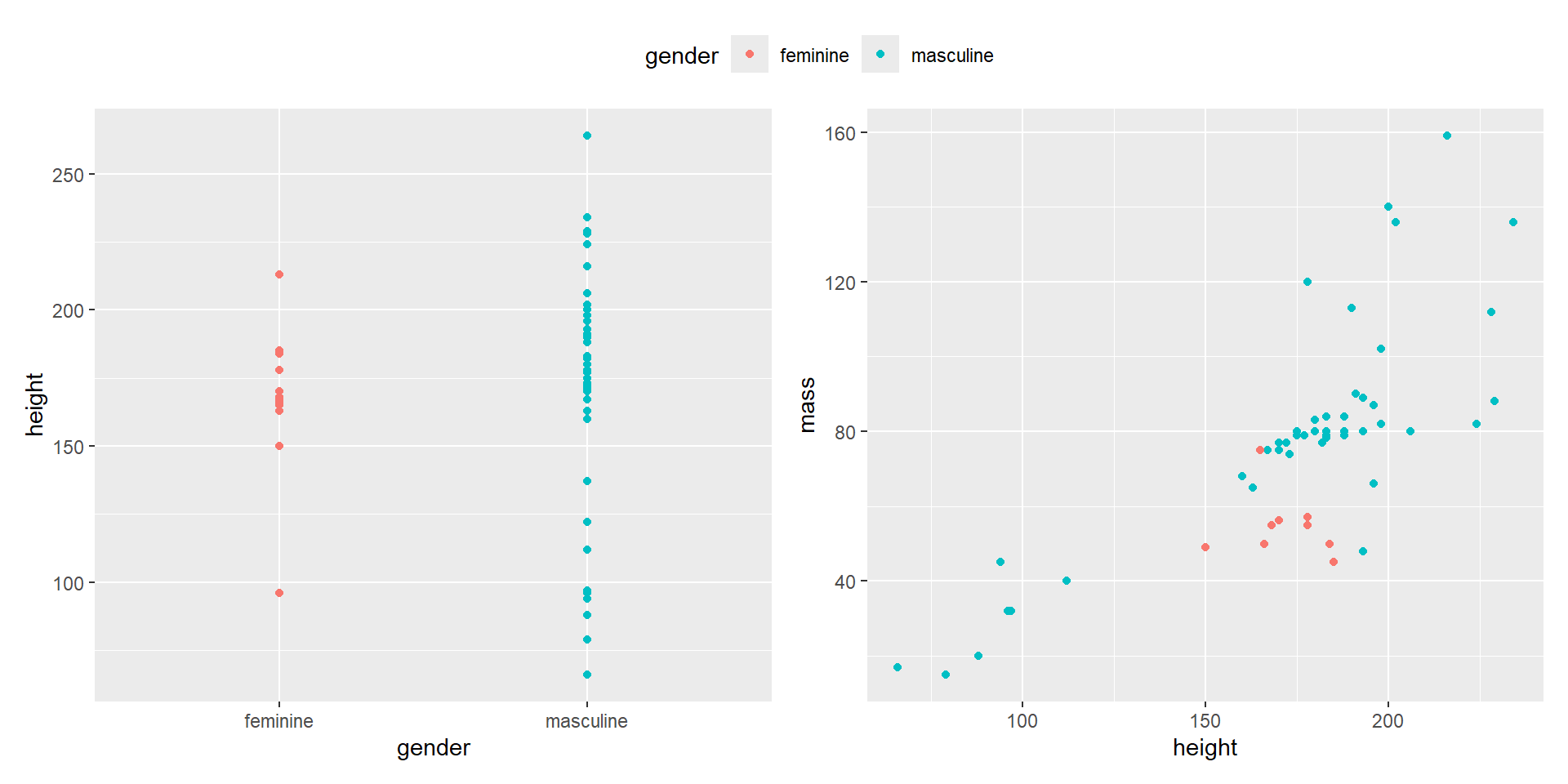
l1 + l2 + plot_layout(guides = "collect") &
  theme(legend.position = "top") 

Composing with patchwork

  • You can include base R plots (or other plots) with wrap_elements().
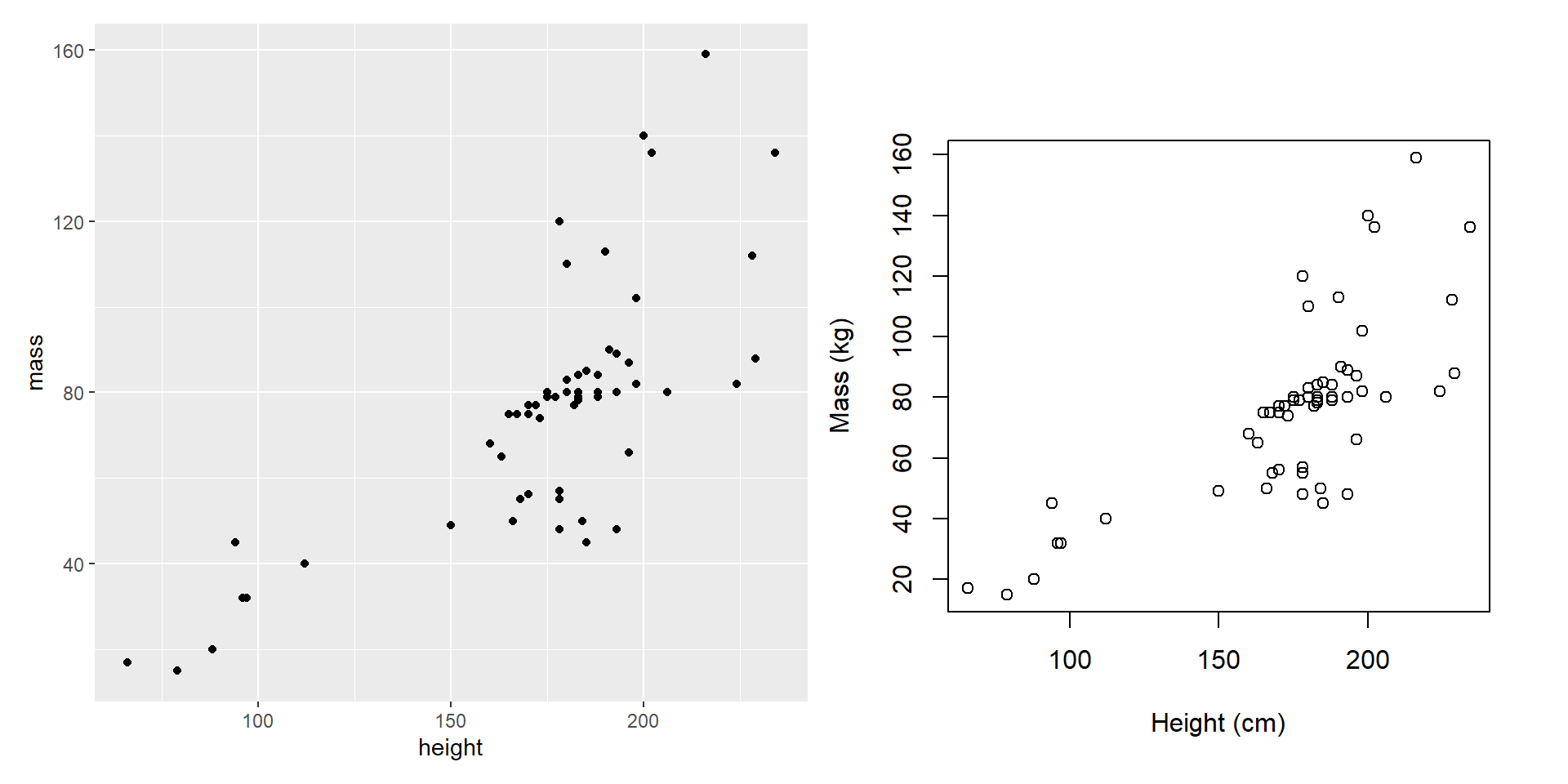
base_plot <- wrap_elements(full = ~ plot(mass ~ height, data = starwars,
                                          subset = mass < 500,
                                          xlab = "Height (cm)", ylab = "Mass (kg)"))

p2 + base_plot

Composing with patchwork


  • There are lots of other excellent features.
  • Check out the Getting Started page on the patchwork website for more.

Questions?


BCB5200 Home